The Ultimate Guide to HDMI IPTV Encoder: How to Choose the Right One for Your Setup
The Ultimate Guide to HDMI IPTV Encoder: How to Choose the Right One for Your Setup
Running a hotel with 200 rooms, a corporate office with 50 screens, or a church that live-streams every Sunday? At some point, you will hit the same wall: how do you get a live video signal from one source to dozens — or hundreds — of displays without running a dedicated cable to every single screen?
The answer is an HDMI IPTV encoder. This compact device takes a standard HDMI signal from a satellite receiver, media player, or camera and converts it into a digital stream that travels over your existing network. Instead of laying hundreds of coaxial or HDMI cables, you use the Ethernet infrastructure you already have.
At GreatIPTV, we specialize in providing reliable, high-performance streaming setups that make video distribution effortless. Whether you are building an enterprise hospitality network or upgrading your business entertainment system, our platform delivers seamless, high-definition streaming tailored to your exact needs.
This guide breaks down exactly how HDMI to IPTV conversion works, which technical specs actually matter, and how to pick the right HDMI encoder for your specific situation — whether you are streaming to 5 screens or 500.
Table of Contents
What Is an HDMI IPTV Encoder and How Does It Work?
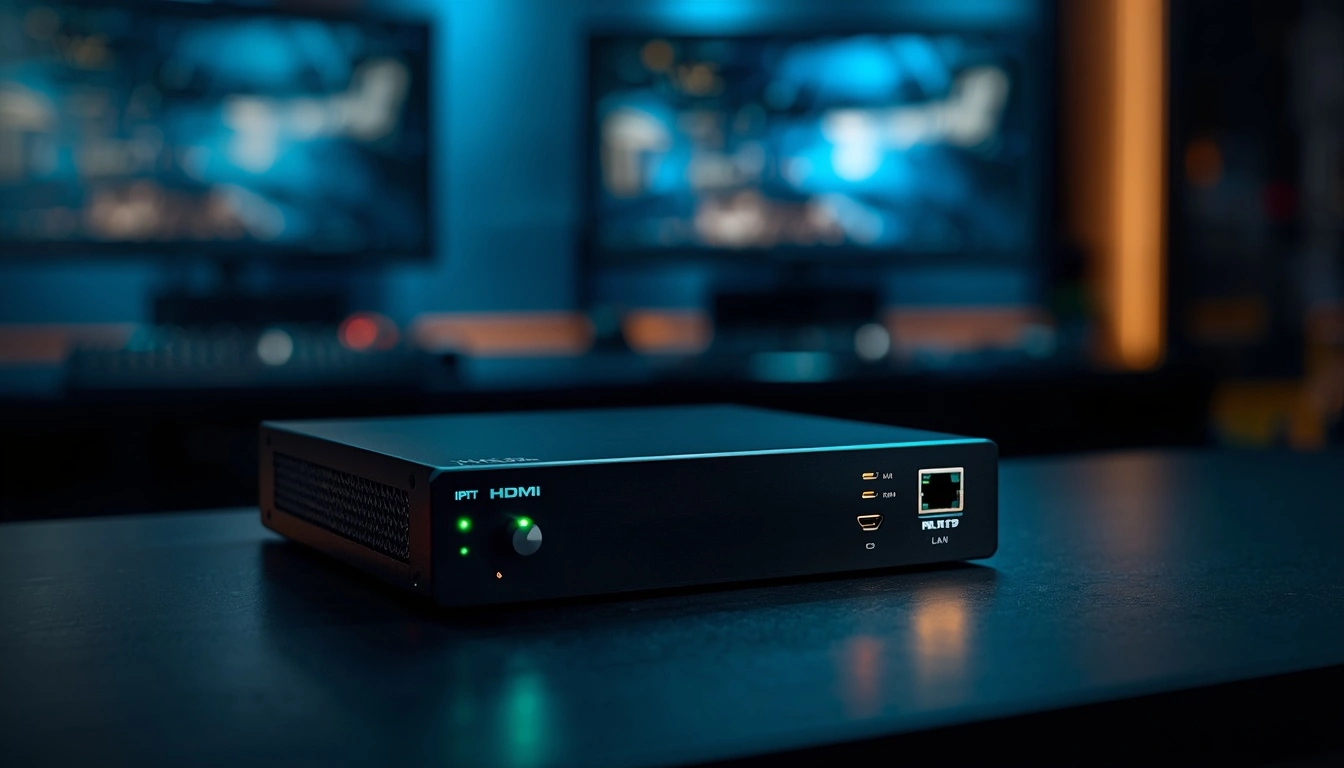
An HDMI IPTV encoder (sometimes called an IPTV HDMI encoder) is a hardware device that sits between your video source and your network switch. Its job is straightforward:
- Input: It receives an uncompressed HDMI signal — for example, from a cable box or Blu-ray player.
- Compression: It compresses that signal using a video codec like H.264 or H.265, shrinking the data from roughly 3 Gbps down to 5–20 Mbps.
- Output: It wraps the compressed video into IP packets and pushes them onto your local network via an Ethernet port.
From there, any compatible device on the same network — a smart TV, a set-top box, or even a laptop running VLC — can pick up the stream and display it.
The HDMI to IPTV Conversion Process in Plain Terms
Think of it like translating a language. Your satellite box “speaks” HDMI, which is a point-to-point format designed for a single screen. Your network “speaks” IP, which is designed to carry data to many destinations simultaneously. The HDMI encoder acts as the translator, converting the signal from one format to the other in real time with minimal delay.
This HDMI to IPTV conversion is what makes it possible to distribute one video source to an entire building full of screens using nothing but standard Cat5e or Cat6 cabling and managed switches.
Why Choose an HDMI IPTV Encoder for Your Setup?
In this digital era, we seek reliable and high-quality streaming solutions. Choosing an HDMI IPTV encoder offers numerous advantages. These devices enhance video quality and ensure efficient audio delivery. Advanced encoding technologies, such as H.264 and H.265, allow for better compression without sacrificing quality.
For instance, the SIIG encoder supports various encoding formats, including H.264 Baseline and MJPEG. This versatility caters to different content needs. Additionally, the JTECH-ENCH4 can manage one main stream and three lower-resolution substreams. This feature is ideal for diverse viewing experiences across multiple devices.
Cost efficiency is another critical factor. The SIIG product is priced at $359.99, while the JTECH-ENCH4 is more affordable at $181.49. With related products reaching up to $862.67, understanding your budget is essential.
| Product | Price | Encoding Support | Warranty |
|---|---|---|---|
| SIIG Encoder | $359.99 | H.265, H.264, MJPEG | 2 years + Lifetime Support |
| JTECH-ENCH4 | $181.49 | H.264 Main + Substreams | 1 year |

Key Features and Technical Specifications
Not every HDMI encoder is built the same. Here are the specifications that will have the biggest impact on your viewing quality and network performance.
Video Resolution and Encoding Codecs
The two codecs you will encounter most often are H.264 and H.265 (HEVC).
- H.264 is the industry standard. Almost every set-top box, smart TV, and software player supports it. It offers solid compression at moderate bitrates (8–15 Mbps for 1080p).
- H.265 compresses roughly 50% more efficiently than H.264 at the same visual quality. This means you can stream 1080p at 4–8 Mbps instead of 8–15 Mbps — a huge advantage when your network carries dozens of channels.
Some encoders, like the SIIG model, also support MJPEG, which is useful for low-latency applications like digital signage where a fraction of a second matters more than bandwidth savings.
What to check: Make sure the encoder’s output resolution matches your displays. An encoder that accepts 4K input but only outputs 1080p is perfectly fine if your TVs are 1080p — but it will not help you if you need native 4K streaming.
Audio Format Support
Video gets all the attention, but bad audio ruins the experience faster than a soft picture. Look for encoders that support:
- AAC (best quality at low bitrates)
- MP3 (widest compatibility)
- PCM 2.0 (uncompressed stereo, higher bandwidth)
Sampling rates of 44.1 kHz or 48 kHz are standard. If your source outputs Dolby Digital or DTS surround sound, verify that the encoder can pass it through or downmix it properly.
Network Connectivity and Bandwidth
The Ethernet port on your HDMI encoder determines how much data it can push to the network:
- 100 Mbps (Fast Ethernet): Sufficient for 2–4 HD streams. Found on budget models like the JTECH-ENCH4.
- 1 Gbps (Gigabit Ethernet): Necessary for high-density setups with 10+ channels. Found on professional models like the SIIG encoder and Thor Broadcasting units.

HDMI IPTV Encoder Comparison: SIIG vs JTECH-ENCH4
To make your buying decision easier, here is a side-by-side comparison of two popular HDMI to IPTV encoders at very different price points.
| Feature | SIIG Encoder | JTECH-ENCH4 |
|---|---|---|
| Price | $359.99 | $181.49 |
| Max Input Resolution | 1080p@60Hz | 4K@60Hz (downscales to 1080p output) |
| Max Output Resolution | 1080p@60Hz | 1080p@60Hz |
| Video Codecs | H.265, H.264, MJPEG | H.264 (Main + 3 Substreams) |
| Audio Formats | AAC, MP3, PCM 2.0 | AAC, MP3 |
| Ethernet Port | Gigabit (1000 Mbps) | 100 Mbps Full-Duplex |
| Dimensions | 4.88 × 0.83 × 3.54 in | 8.00 × 6.00 × 2.50 in |
| Warranty | 2 years + Lifetime Support | 1 year |
| Best For | High-density, multi-channel setups | Small offices, single-channel streaming |
Selecting the ideal streaming solution can significantly enhance our viewing experience. When considering an HDMI IPTV encoder, we must focus on resolution, bitrate, and compression profiles. These factors play a crucial role in delivering high-quality video and audi
For instance, the JTECH-ENCH4 accepts 4K@60Hz HDMI input but outputs at 1080p@60Hz. This contrast illustrates the importance of matching our source and display requirements. Understanding the H.264 profiles—Baseline for low-complexity devices, Main for standard-definition, and High for high-definition—helps us make informed choices.
Moreover, calculating bandwidth needs is essential. An office setup requiring 16 channels might need around 160Mbps, translating to about 10Mbps per stream. When comparing HDMI with SDI and RF sources, we should be cautious of potential timing and frame-loss issues from third-party converters.
For high-density environments, Thor Broadcasting recommends the H-HDPerformux-24, which efficiently manages 24 HDMI sources with multicast transport streams. In our analysis, we see that choosing compression profiles, bitrate, and audio formats should be a cohesive decision rather than isolated specifications.
How to Choose the Right HDMI IPTV Encoder for Your Needs
Matching Input and Output Resolutions
A common mistake is buying an HDMI encoder based on its input spec while ignoring the output. The JTECH-ENCH4, for example, happily accepts a 4K@60Hz signal from your Apple TV, but it will downscale that to 1080p@60Hz before encoding. If your displays are 4K, you need an encoder that outputs 4K natively — otherwise you are paying for resolution you will never see.
Calculating Bandwidth for Multi-Channel Setups
Here is a quick formula to size your network:
Total bandwidth = Number of channels × Bitrate per channel
- 16 channels at 10 Mbps each = 160 Mbps (fits comfortably on a Gigabit backbone)
- 50 channels at 8 Mbps each (H.265) = 400 Mbps (still within Gigabit, but you will want a managed switch with IGMP snooping)
- 100+ channels = consider 10 Gbps uplinks between your core switches
For high-density environments like large hotels, Thor Broadcasting’s H-HDPerformux-24 handles 24 HDMI sources in a single 1U rack unit with multicast transport streams — a serious step up from stacking individual encoders.
Compatibility and Network Integration for Seamless Streaming
In our quest for uninterrupted streaming, compatibility with existing systems is crucial. A well-planned network integration can enhance the performance of our streaming setup.
When deploying a Cisco switch for 120 IP set-top boxes, proper configuration is vital. This includes using DHCP for addressing and IGMP for managing multicast group memberships. These protocols ensure that our network runs smoothly and efficiently.
We must also consider the connection between the encoder and set-top boxes. The encoder typically uses Gigabit Ethernet, while the set-top boxes may rely on 100Base-T. Connecting these through a compatible switch is essential to avoid mismatched interface speeds.
For long-distance connections, we should adhere to the 100-meter limit of CAT 5 Ethernet. Utilizing intermediate switches or fiber media converters can extend this distance significantly.
Moreover, Power over Ethernet (PoE) supplies DC power but does not extend the Ethernet signal range. Thus, a reliable wired connection is preferable for multicast streaming, as Wi-Fi can be unreliable.
Unicast traffic requires careful subnet planning. The encoder’s data IP and receiver IP must share the same subnet, while other management IPs should remain separate. This ensures efficient data flow and reduces potential conflicts.
| Feature | Requirement | Notes |
|---|---|---|
| DHCP Configuration | Necessary | For addressing IP set-top boxes |
| IGMP Management | Essential | For controlled multicast group membership |
| Connection Type | Gigabit Ethernet | For encoders, use compatible switches |
| Distance Limit | 100 meters | For CAT 5 Ethernet runs |
| Power Over Ethernet | Provides DC power | Does not extend Ethernet range |
Step-by-Step Setup and Troubleshooting
Testing Your Stream with VLC
Before connecting set-top boxes, verify that your HDMI encoder is actually producing a clean stream:
- Connect the encoder to your network switch.
- Open VLC on a laptop connected to the same subnet.
- Go to Media → Open Network Stream.
- Enter the multicast address (for example,
udp://@224.2.2.2:10002). - If the video plays smoothly, your encoder and network are working correctly.
For deeper analysis, use TS Reader to inspect the transport stream for errors, missing PIDs, or codec mismatches.
Common Problems and Quick Fixes
| Problem | Likely Cause | Fix |
|---|---|---|
| Black screen on TV | Unsupported codec or resolution | Check encoder output settings; switch to H.264 Baseline |
| No audio | Audio format mismatch | Set encoder to AAC or PCM 2.0; verify source output |
| Buffering and pixelation | Network congestion | Enable IGMP snooping on the switch; reduce bitrate |
| Stream works on VLC but not on set-top box | Subnet mismatch | Ensure encoder data IP and receiver IP share the same subnet |
| Intermittent dropouts | Cable run exceeds 100m | Add an intermediate switch or fiber converter |
A single stream on a switch port should show roughly 8 Mbps of traffic. If you see 80 Mbps on a port serving one TV, IGMP snooping is not working and the switch is flooding all channels to that port.
Final Verdict: Which HDMI Encoder Should You Buy?
Your choice comes down to three questions:
- How many channels do you need? Under 4 → JTECH-ENCH4. Over 10 → SIIG or a multi-channel unit from Thor Broadcasting.
- What resolution are your displays? 1080p → any encoder on this list. 4K → look for a native 4K output model.
- What is your network backbone? 100 Mbps → limit yourself to 2–3 streams. Gigabit → you have room for 50+ channels with H.265.
No matter which HDMI to IPTV solution you choose, invest time in configuring your switches properly. A $200 encoder on a well-tuned network will outperform a $2,000 encoder on a misconfigured one every time.
Conclusion
In the evolving landscape of digital entertainment, selecting the appropriate devices is essential for optimal performance. The best choice of streaming equipment hinges on various factors, including source resolution, compression profile, and audio format.
We must compare the 1080p60Hz performance of the SIIG with the JTECH-ENCH4’s capability to accept 4K@60Hz input while outputting at 1080p@60Hz. Calculating bandwidth is crucial; for instance, a setup with 16 channels may require around 160Mbps.
Additionally, we should prioritize DHCP, IGMP, and proper subnet design for reliable delivery to our devices. Tools like VLC and TS Reader can assist in verifying stream quality and performance.
Finally, when purchasing, consider HDMI compatibility, protocol support, and warranty terms to ensure future channel expansion is feasible. By following these guidelines, we can enhance our streaming experience significantly.
Frequently Asked Questions About HDMI IPTV Encoders
What is an HDMI IPTV encoder?
An HDMI IPTV encoder is a hardware device that takes an HDMI video signal and converts it into a compressed IP stream (using H.264 or H.265) for distribution over a local network. It is the core component of any HDMI to IPTV distribution system.
What is the difference between an HDMI encoder and an HDMI IPTV encoder?
The terms are often used interchangeably. Technically, an HDMI encoder is any device that compresses an HDMI signal, while an HDMI IPTV encoder specifically outputs the stream in IPTV-compatible protocols like UDP multicast, RTP, or HLS for delivery to set-top boxes and smart TVs.
Can I use an HDMI IPTV encoder with my existing network?
Yes. Most IPTV HDMI encoder models connect via standard Ethernet and work with your current switches and cabling. The main requirement is a managed switch with IGMP snooping support if you plan to run more than a few channels.
How much bandwidth does an HDMI to IPTV stream require?
A single 1080p stream encoded with H.264 typically uses 8–15 Mbps. With H.265, that drops to 4–8 Mbps at comparable quality. Multiply by the number of simultaneous channels to calculate your total bandwidth needs.
Do I need a special set-top box for HDMI IPTV?
You need an IP set-top box that supports the same streaming protocol as your HDMI encoder — usually UDP multicast or RTSP. Many smart TVs can also receive IPTV streams directly through built-in apps or middleware like Xtream Codes.
What are the best brands for HDMI IPTV encoders?
Reliable brands include SIIG, JTECH, Thor Broadcasting, Teradek, and Magewell. For budget-friendly single-channel setups, JTECH is a solid choice. For large-scale hotel or campus deployments, Thor Broadcasting and Magewell offer high-density rackmount solutions.