IPTV Smarters Login: Step-by-Step Guide for Every Device (2026)
Accessing favorite shows across several screens can feel frustrating. Technical setup should be simple, but configuration errors and connection issues often slow users down.
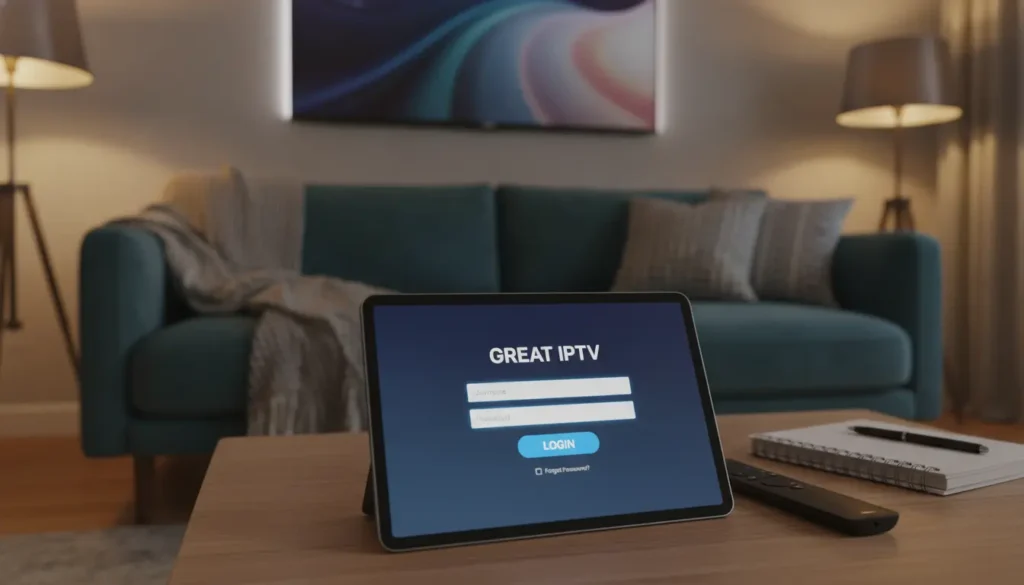
This 2026 guide is your practical resource for completing an IPTV Smarters Login with ease. We explain how to prepare account credentials and select the best connection method for your hardware.
Whether you use Fire TV, Roku, a smart TV, or a mobile device, these instructions fit your needs. They cover initial setup and common access problems.
Follow this step-by-step approach to create a smooth viewing experience on every supported platform. Unlock your media library and enjoy seamless streaming today.
Ready to Complete Your IPTV Smarters Login?
Follow the installation guide or explore Great IPTV to find the right streaming option for your compatible device.
Simple setup instructions for supported streaming devices
What You Need Before Starting IPTV Smarters Login
Start your streaming setup by gathering the right information from your service provider. Organized details make installation and viewing easier.
Confirm Your IPTV Provider Account Is Active
Before signing in, check that your subscription remains active. Expired credentials often cause login problems and frustration.
Contact your iptv provider if you are unsure about your account status. They can confirm your service works on your chosen device.
Looking for a Reliable IPTV Service Provider?
Explore Great IPTV and learn more about available plans, supported devices, streaming features, and setup options before you get started.
Explore IPTV Service OptionsReview the details and choose the option that suits your viewing needs.
Gather Your IPTV Smarters Login Details
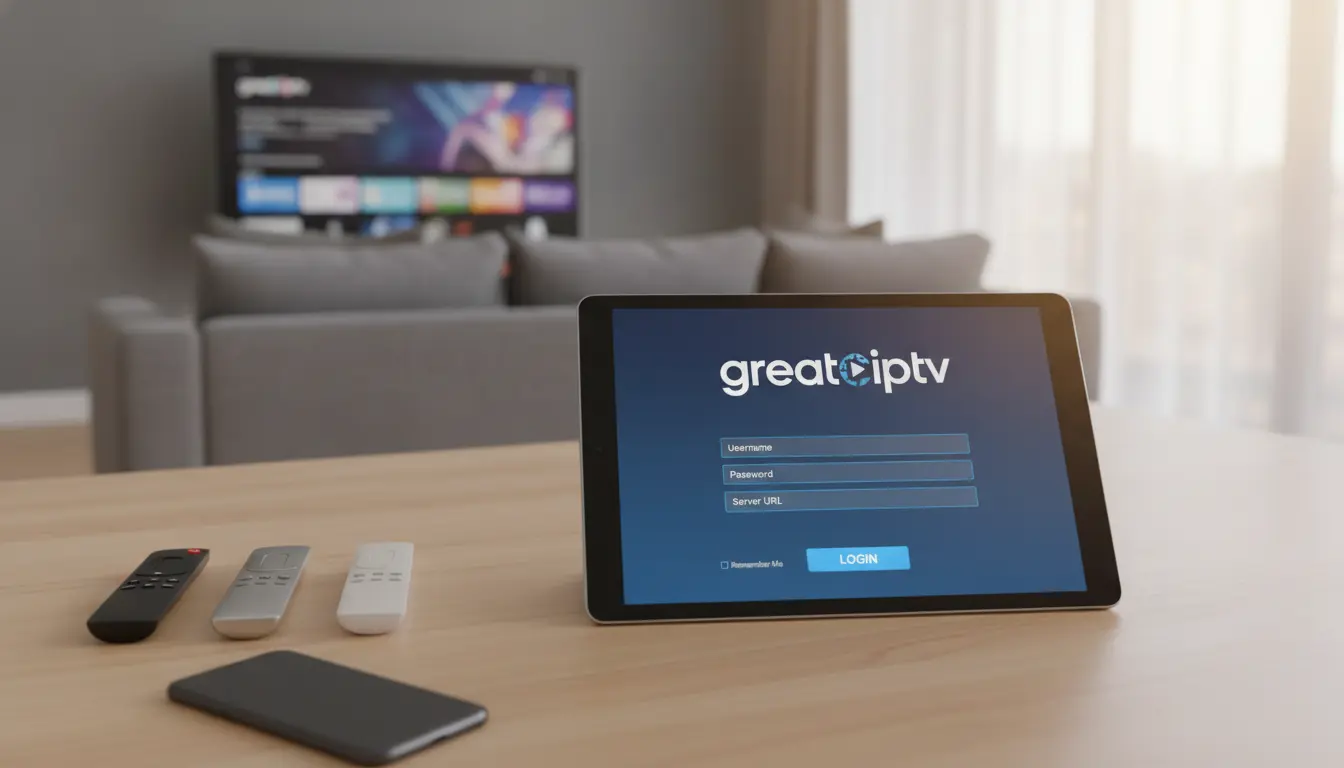
Prepare your iptv smarters login details before opening the application. Your provider usually sends them by email after purchase.
Username and Password
Most services require a unique username and password to verify your connection. Keep these credentials secure because they access your streaming profile.
Server URL and Xtream Codes API Information
The server URL connects your device to the streaming service. The Xtream Codes API can automatically load your channels and EPG data.
M3U Playlist URL
If your service does not use an API, it may provide an M3U playlist URL. The app uses this link to load your channels and content library.
Check Your Device, Internet Connection, and App Version
Check that your device connects to a stable internet network. High-definition streaming needs steady bandwidth.
Use the latest application version whenever possible. Updates fix bugs, improve security, and help prevent common login errors.
Use a Legitimate IPTV Provider and Trial Account
Choose a reputable iptv provider for better reliability and security. Look for clear terms of service and helpful support.
Many reliable services offer a free trial for testing stream quality and channel variety. Use a free trial to check performance on your hardware before choosing a long-term plan.
How IPTV Smarters Login Works
Understanding how the iptv smarters pro login process works helps ensure smooth streaming. Unlike many mainstream apps, this platform has no universal account from its developer. Instead, it acts as a bridge connecting your device to the library from your specific iptv provider.
Choose Between Xtream Codes API and M3U Playlist Login
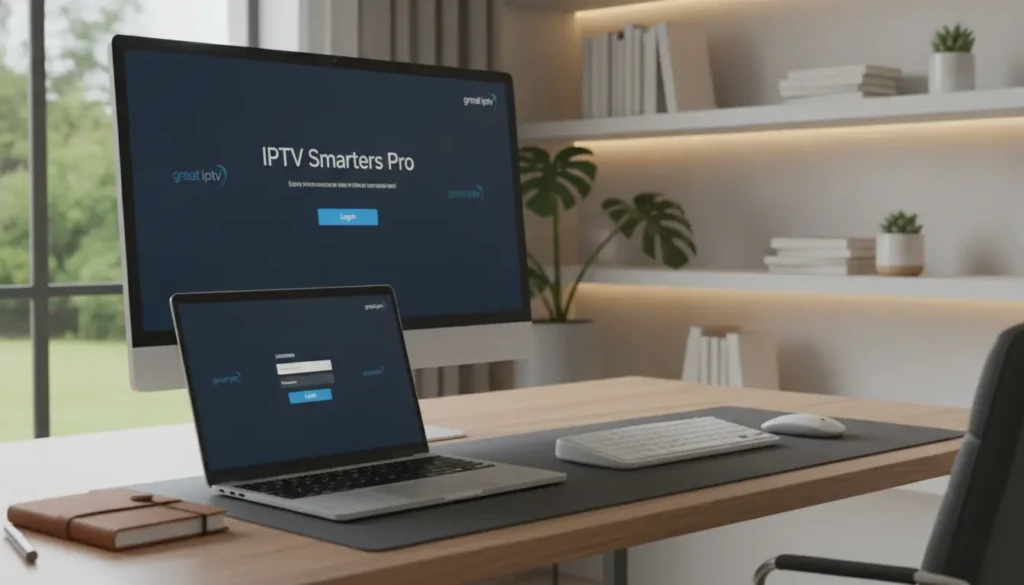
When you first open the application, you will see two main ways to add your subscription. Choose the method that matches the information from your service.
When to Use the Xtream Codes API Option
The xtream codes api is usually the best choice for most users. It offers a steadier connection and automatically loads channel categories, EPG (Electronic Program Guide), and VOD content. Choose it when your provider gives you a username, password, and base URL.
When to Use an M3U Playlist URL
An m3u playlist url is a text-based file link containing your channel list. Use this method if your provider lacks API access or you want a simpler setup. However, it may not sync guide data or categories as well as the API method.
Understand the Difference Between IPTV Provider Details and App Credentials
New users often confuse subscription details with app accounts. Your iptv provider gives you credentials for your service, and these are the only details needed to sign in.
- Provider Credentials: These include your username, password, and server address.
- App Credentials: These are not required for the basic version of the software.
- Security Note: Never pay for or create a separate account for the app itself, as the software is designed to be a neutral player.
Verify the Server URL Format Before Signing In
The server url is the digital address that shows the app where to find your content. Enter this string exactly as provided, including the “http://” or “https://” prefix. A missing character or extra space can cause an authentication error and block your stream.
Protect Your IPTV Smarters Login Details
Your streaming credentials provide access to your personal subscription, so treat them like banking information. Enter your server url and login details only into legitimate, official app versions from trusted sources. Avoid sharing your login information with third parties to protect your account and connection limits.
How to Sign In to IPTV Smarters on Fire TV and Firestick
Set up streaming on a Fire TV device by following these simple steps. The official application and smarters player lite can organize media on your television.
Install IPTV Smarters or Smarters Player Lite on Fire TV
Open the search bar on your home screen and type the application name. Your region and store may show the standard app or smarter player lite version.
Select the app from the results, then click the download button. After installation, open it from your apps library.
Log In With Xtream Codes API on Firestick
Launch the app and enter your credentials. For a firestick user, selecting the xtream codes api option is usually most reliable.
Enter the username, password, and server URL from your provider. Check each character carefully to prevent authentication errors.
Add an M3U Playlist URL on Amazon Fire TV
To avoid the API, load your content through a file or link. Select the option to add an m3u playlist url, then enter your subscription link.
Name your playlist to track subscriptions from multiple sources. After saving, the app will fetch your content library.
Complete the Initial Channel and EPG Setup
After login, the app downloads your channel list and electronic program guide (EPG) data. This may take minutes, depending on your provider’s library size.
Pro tip: Keep your device powered on and connected to stable internet during this process. When the progress bar finishes, your dashboard will show categories and live streams.
Fix Common Firestick Login and Installation Issues
Technical problems may stop the app from working correctly. Fixing them early supports smooth viewing on your firestick.
App Unavailable in the Amazon Appstore
If the app is missing from the official store, use the “Downloader” app to sideload its APK file. Download only from a trusted source to protect your firestick.
Incorrect Device Date, Network, or App Permissions
Simple settings can cause connection problems. Check these items to fix common issues:
- Verify that your device date and time are set to “Automatic” in the system settings.
- Ensure your network is not blocking the xtream codes api traffic through a firewall.
- Check that you have granted the necessary storage permissions for the app to save your m3u playlist url data.
How to Log In on Samsung Smart TV and LG Smart TV
Setting up a media player on a samsung smart tv or lg smart tv is simple with the right steps. Both platforms offer high-quality displays, but their operating systems install apps differently. Knowing this can reduce troubleshooting time and help you enjoy your content sooner.
Install the Compatible IPTV Smarters App on a Samsung Smart TV
Open the official app store on your television. Search by the application’s name to find the legitimate version. Select the install button to add the app to your home screen.
Enter Xtream Codes API Details on Samsung Tizen
The Tizen operating system requires careful credential entry. You will usually enter your username, password, and server URL. The xtream codes api method works efficiently because it syncs your channel list and electronic program guide.
Set Up IPTV Smarters on an LG Smart TV
On an LG platform, open the LG Content Store. Search for the application and check that its developer matches the official release. After installation, launch the app to open the initial login screen.
Use an M3U Playlist When the API Login Option Is Missing
The preferred login method may not appear because of regional restrictions or app versions. You can use an M3U playlist URL as a reliable alternative. Enter the link from your service provider to load your channel data manually.
Resolve Smart TV Compatibility and App Availability Problems
Compatibility issues often occur when your television firmware is outdated. Check for system updates in your settings before installing new software. If the app is unavailable in your region, check location settings or use a supported external streaming device.
| Feature | Xtream Codes API | M3U Playlist |
|---|---|---|
| Setup Speed | Fast (Automatic) | Moderate (Manual) |
| EPG Support | Full Integration | Requires Manual Link |
| Data Entry | Minimal | Requires Long URL |
| Reliability | High | Variable |
How to Set Up IPTV Smarters on Android TV Box and Google TV
You can turn your Android TV or Google TV device into a powerful media center with the right software. This process centralizes your favorite content and helps you manage streams with professional-grade tools.
Install IPTV Smarters on an Android TV Box
To begin, open the Google Play Store from your home screen. Search for the application by name and select the official version for compatibility with your android tv box.
Once you find the app, click the install button to download it. After installation, launch the app and accept the terms of service to reach the main dashboard.
Complete the IPTV Smarters Pro Login With Xtream Codes API
The most efficient way to access your service is through the xtream codes api. When you start the iptv smarters pro login, enter your username, password, and server URL from your service host.
Type these credentials carefully to prevent authentication errors. After submission, the app automatically fetches your channel list and categories for a smooth experience.
Add Channels With an M3U Playlist URL
If your provider lacks API access, use an m3u playlist url instead. Select the “Load Your Playlist or File/URL” option in the app menu, then enter your link.
Give your playlist a recognizable name for easy identification later. This method works well for users who prefer managing content sources manually.
Configure EPG, Favorites, and Parental Controls
After setup, organize your interface for easier use. Manually refresh your epg data so the program guide shows the latest show information.
Mark your most-watched channels as favorites to keep them at the top of your list. Use the settings menu to enable parental controls, which lock categories with a PIN for added security.
Improve Playback on Android TV and Google TV
To ensure smooth streaming, adjust the internal player settings when needed. Open the player selection menu and test different decoders if you notice stuttering or audio sync issues.
A stable internet connection is vital for high-definition content. If your wireless signal is inconsistent, consider wired Ethernet for more reliable performance.
| Feature | Xtream Codes API | M3U Playlist URL |
|---|---|---|
| Setup Speed | Fast | Moderate |
| EPG Integration | Automatic | Manual |
| Ease of Use | High | Medium |
| Data Security | Encrypted | Standard |
How to Use IPTV Smarters on Apple TV, iPhone, and Android Phones
Streaming beyond your living room TV is easy. At home or while traveling, access content on apple tv, smartphones, and tablets.
Install the Available IPTV Smarters App on Apple TV
Open the App Store on your living room device. Search for the official app, then select the download icon to install it.
After installation, open the app from your home screen. Accept the terms of service to reach the authentication screen.
Sign In on iPhone and iPad
Mobile users can enjoy the same features through the iOS App Store. After installation, completing your IPTV Smarters Login on an iPhone or iPad is simple.
Open the app and choose a login method, such as Xtream Codes API or M3U URL. Keep your device on a stable network to avoid initial handshake errors.
Set Up IPTV Smarters on an Android Phone or Tablet
Android users should open Google Play Store and find the latest app version. After installation, grant storage and network permissions for smooth performance.
Android tablets use an interface built for touch navigation. After verifying your credentials, switch between live TV, movies, and series.
Enter Login Details Without Adding Extra Spaces
Extra spaces often cause authentication failure. When entering your username, password, or server URL, remove all leading and trailing spaces.
- Double-check the spelling of your server URL.
- Verify that your password matches the case-sensitive requirements.
- Avoid using auto-fill features if they tend to add hidden spaces.
Manage Multiple Devices and Mobile Network Restrictions
Many providers limit simultaneous streams on one account. If you try an IPTV Smarters Login on a new device while other streams run, a connection error may appear.
Some mobile carriers also restrict streaming traffic. If buffering occurs, try these tips:
- Check if your provider allows mobile network usage.
- Use a VPN if your carrier throttles streaming data.
- Log out of unused devices to free up your connection limit.
How to Access IPTV Smarters on Roku and Unsupported Devices
Roku devices offer limited support for some third-party apps. Many users expect every popular streaming app on every platform, but that is not always true.
Check Whether IPTV Smarters Is Available Through the Roku Channel Store
First, check the official Roku Channel Store. Open Search on your Roku home screen, then enter the app’s name.
If the app does not appear in the official results, Roku does not support direct installation. Do not rely on unofficial sources; the official store is the only secure way to add software.
Understand Roku’s App and Casting Limitations
Roku uses a proprietary operating system that blocks most third-party software. Unlike open platforms, Roku limits users to apps reviewed and approved by its team.
Roku’s casting limits can also block screen mirroring. Some media files can cast, but full app mirroring is often blocked or unstable.
Use a Supported Fire TV, Android TV, or Smart TV Instead
For more flexibility, switch to another device. An android tv box or Fire TV stick lets you install more apps.
These devices let you enter your m3u playlist url and access your content. Consider these popular alternatives for a better streaming experience:
- Amazon Fire TV Stick 4K
- NVIDIA Shield TV
- Chromecast with Google TV
- Various generic Android TV box models
Cast From an Android Phone or iPhone When Compatible
If you must keep your current hardware, try casting content from your mobile device. Connect your phone and streaming device to the same local network.
This method is less seamless than a native app, but it can provide a temporary bridge. Manage your m3u playlist url on your phone, then send the video stream to your television.
Avoid Unverified Roku Workarounds and Unauthorized Apps
Some websites claim to offer “secret” ways to install unsupported apps. It is vital to avoid these unverified workarounds at all costs.
These methods may change system files or use unauthorized software, putting your security at risk. Use official hardware and supported apps to keep your streaming setup safe and reliable.
How to Fix IPTV Smarters Login Not Working
When your credentials fail, do not panic. A clear process can restore access quickly. Many users find their iptv smarters login not working because of simple setup errors.
Recheck Your IPTV Smarters Login Details
Review your iptv smarters login details before assuming your account is broken. Small typos often cause access problems.
Correct Invalid Username and Password Errors
Check your username and password for case-sensitive characters. Make sure Caps Lock is off, and do not confuse zero with the letter “O.”
Remove Spaces From the Server URL and Playlist Fields
Hidden spaces can cause connection errors. Check your server url and playlist fields for spaces before or after the text.
Resolve “Authorization Failed” and “Invalid Details” Messages
An authorization failed or invalid details message means the app reached the server, but rejected your credentials. Your account may still be active. The server address may have changed, or your subscription may have expired.
Test Whether Your IPTV Provider’s Server Is Online
The problem may involve your iptv provider, not your device. Open the service in a web browser or on another device. This test can show whether maintenance has taken the server offline.
Update, Restart, or Reinstall IPTV Smarters
Old software can cause compatibility problems. Check your device’s app store for the latest application version. If problems continue, restart your device or reinstall the app to clear lasting bugs.
Clear App Cache and Reset Saved Account Data
Corrupted temporary files can disrupt login. Open your device settings, then clear the app cache and data. This gives the app a fresh start, so you can enter credentials without old saved information.
Contact Your IPTV Provider With the Correct Diagnostic Information
If these steps fail, contact your service provider for help. For a faster resolution, send these diagnostic details:
- The specific error message displayed on your screen.
- The type of device and operating system you are using.
- Your current internet service provider and approximate location.
- A screenshot of your login configuration screen (with sensitive info redacted).
How to Fix Connection, Playback, and Device Limit Errors
A successful login does not prevent errors that disrupt your viewing experience. These problems often come from network settings, plan limits, or temporary server issues, not wrong credentials.
Resolve “Max Connections Reached” Errors
If you see a max connections reached notification, your account is active on more devices than your plan allows. This error blocks new streams until you close an active session on another device.
Check Your IPTV Subscription’s Simultaneous Stream Limit
Check your service plan to learn how many devices can stream at once. Many providers offer single-stream plans, while others allow two or more simultaneous connections.
- Review your provider’s dashboard to see active device sessions.
- Log out of unused devices to free up your connection slot.
- Contact support if you suspect unauthorized access to your account.
Fix Buffering After a Successful Login
Buffering often results from unstable internet speeds or high latency between your device and the server. To improve playback, stop background downloads and updates while streaming.
Refresh the EPG When Guide Data Is Missing
When your epg fails to load, the channel list may look empty or outdated. Open the app settings, then clear or refresh the guide data manually.
Switch Between Wi-Fi, Ethernet, and Mobile Data for Testing
Network interference often causes playback drops. If you use Wi-Fi, switch to a wired Ethernet connection to test its stability. You can also use a mobile hotspot to rule out local ISP throttling.
Identify Provider-Side Outages Before Changing Login Details
Before resetting your password or re-entering credentials, check for a provider service outage. Changing login details during a server issue can cause account lockouts or more synchronization errors.
How to Secure and Maintain Your IPTV Smarters Account
Protecting your digital entertainment setup takes regular care and safe habits. These steps help protect personal information and keep streaming private and reliable.
Change Compromised IPTV Smarters Login Details Through Your Provider
If you think someone stole your login details, act quickly. Contact your official iptv provider through its verified website or support portal. Ask for a password reset.
Do not share login details with unofficial contacts or social media groups. Real services never request passwords through unsafe messages or unexpected emails.
Keep the App and Device Operating System Updated
Software updates fix security weaknesses that hackers may use. Check the app settings and your device’s system menu often.
- Enable automatic updates for your streaming applications.
- Install the latest firmware for your Android TV, Firestick, or Smart TV.
- Remove any outdated versions of the software to prevent compatibility conflicts.
Review Active Devices and Remove Unused Connections
Most subscriptions limit the number of simultaneous streams. Check your account dashboard often to find unknown devices using your connection.
If unknown hardware appears in your account settings, remove it at once. This blocks others from using bandwidth and may prevent account lockouts.
Back Up Your Server URL and Playlist Information Safely
Keep a secure record of your server url and playlist details for recovery. Store this sensitive data in an encrypted password manager, not plain files or public cloud storage.
Never post your connection details on public forums or social media. To help your iptv provider troubleshoot, use private, encrypted communication channels.
Recognize Fake IPTV Smarters Apps and Phishing Pages
Cybercriminals create fake streaming apps to steal data. Download software only from official stores, such as the Google Play Store or the Amazon Appstore.
Avoid sites promising a free server url or unauthorized premium content access. These phishing pages steal credentials and may cause identity theft or service disruption.
Conclusion
Successful streaming needs a strong foundation and a clear understanding of your service requirements. To complete your IPTV Smarters Login, you need an active subscription and exact credentials from your service partner. Xtream Codes API and M3U playlists both require accuracy for smooth streaming on Fire TV, Apple TV, or mobile devices.
Approach technical hurdles calmly and methodically. Many common errors come from simple typos or network changes, not serious system failures. Check your server status and internet connection before resetting account settings.
Protecting your IPTV Smarters Login details secures personal data and blocks unauthorized access to your stream.
Use official, supported applications to keep your viewing environment stable throughout 2026. Legitimate services offer the best performance and regular updates for your hardware. These best practices help maintain a reliable, high-quality entertainment hub for your entire household.