
IPTV Login & Setup Guide : Step by Step
Set up Great IPTV with clear, device-specific instructions. Learn how to complete your IPTV login, configure a compatible player, and start watching on Smart TVs, Fire TV devices, Android, smartphones, tablets, and other supported devices.
- EASY SIGN-IN
- DEVICE READY
- GUIDED SUPPORT
- FAST START
New to Great IPTV? Explore our IPTV USA channels before completing your installation.
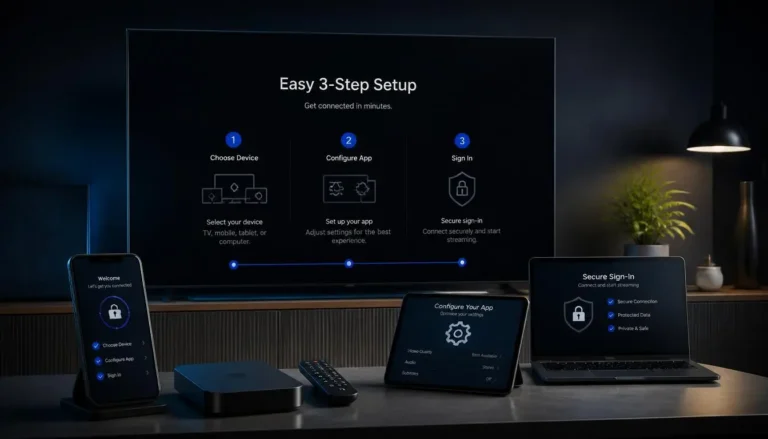
Before You Start: What You Need for IPTV Setup
A smooth setup starts with having the right information ready. Before beginning your IPTV login, make sure you have received your active subscription details and have a compatible device connected to a stable internet connection. You will also need a supported IPTV player or application appropriate for your device.
Your Login Details
Keep the credentials provided with your active subscription ready. Depending on the supported setup method, these may include the information required to connect your account to a compatible player.
A Compatible Device
Choose the device you want to set up, such as a Smart TV, Fire TV device, Android device, smartphone, tablet, or computer.
A Compatible IPTV Player
Install a supported player that works with your device and the setup method provided with your subscription.
Stable Internet Connection
A reliable connection helps provide smoother setup, authentication, and everyday streaming performance.
Everything ready? Choose your device below and follow the relevant installation instructions.
Choose Your Device & Start the IPTV Installation
Great IPTV can be configured across a range of compatible devices and IPTV players. Select your device below to find the appropriate installation method, then use the subscription details provided to you to complete your IPTV login.
Amazon Fire TV / Firestick
Set up IPTV on compatible Fire TV devices using a supported IPTV player and follow the device-specific instructions.
Android TV & Google TV
Install a compatible IPTV player on supported Android TV or Google TV devices, then configure it using your subscription details.
Samsung Smart TV
Learn how to use a compatible IPTV application available for supported Samsung Smart TV models.
LG Smart TV
Choose a compatible player for your supported LG Smart TV and follow the appropriate login and configuration process.
Apple TV
Set up your subscription using a compatible IPTV player available for supported Apple TV devices.
Android Phone & Tablet
Install a compatible IPTV application on your Android smartphone or tablet and configure your subscription.
iPhone & iPad
Use a compatible IPTV player on supported iOS or iPadOS devices and follow the setup instructions.
Windows & Mac
Configure your subscription through a compatible desktop IPTV player on your Windows PC or Mac.
How to Install IPTV on Firestick & Fire TV

Amazon Fire TV devices are a popular choice for streaming because they connect directly to your television and provide access to compatible IPTV players. To get started, make sure your Firestick is connected to the internet and that you have your Great IPTV subscription details ready.
01
Choose a Compatible IPTV Player
Start by choosing an IPTV player that supports your Fire TV device and the login method provided with your subscription. When deciding on the best IPTV for Firestick setup, prioritize a player that is compatible with your device, easy to navigate, and supports your subscription format.
02
Install the IPTV Player
Use the official app store on your Fire TV device to search for your chosen compatible player. If the app is officially available for your device and region, install it and open it when the installation is complete.
03
Enter Your Subscription Details
Open the player and select the appropriate login option. Carefully enter the subscription information provided with your Great IPTV account.
Depending on the supported player, the required information may include your username, password, and server/portal information.
04
Complete Your IPTV Login
Double-check your details before signing in. Once your IPTV login is accepted, allow the application time to load the available content and categories associated with your subscription.
05
Start Exploring
Once everything has loaded, browse the available live TV, entertainment, and other supported categories. You can also adjust the player’s interface and playback preferences according to your device and viewing needs.
Quick tip
Keep your subscription credentials private. Only enter them into a compatible player you trust, and never publish or share screenshots containing your username, password, or server details.
How to Install IPTV on Android TV & Android Devices

Android gives you plenty of flexibility when setting up your subscription. Whether you’re using an Android TV, Google TV, smartphone, or tablet, the basic process is similar: choose a compatible IPTV player, install it from a trusted source, and connect it using the subscription details provided to you.
If you haven’t selected a subscription yet, view IPTV plans before starting the installation.
Step 1 — Choose a Compatible IPTV App
Start by selecting a player that supports your Android device and the login method provided with your subscription. When comparing options for the best Android app IPTV setup, focus on compatibility, ease of navigation, playback features, and support for your required login method.
Common compatible player options may include:
- IPTV Smarters / Smarters Player
- TiviMate
- XCIPTV
- IBO Player
Only list an app on your website if you’ve actually confirmed that it works with your service and the relevant Android device.
Step 2 — Install the App
Open the Google Play Store on your Android device and search for your chosen compatible IPTV player. Check the developer and app details before installing to make sure you’ve selected the intended application.
Step 3 — Open the IPTV Player
Launch the application after installation. The first screen may ask you to select a login or playlist method. Choose the method that corresponds to the subscription information Great IPTV provided to you.
Step 4 — Enter Your IPTV Login Details
Carefully enter the required account information. Depending on the player and supported setup method, this may include a username, password, and server or portal information. Check for typing errors before continuing, especially in longer server addresses.
Step 5 — Allow Your Content to Load
After a successful IPTV login, the player may need a short time to synchronize the available content associated with your subscription. Once loading is complete, you can browse the available categories.
Step 6 — Adjust the Player for Your Device
Explore the player’s settings and choose preferences appropriate for your screen and connection. Android TV users may prefer a television-focused layout, while smartphone and tablet users may benefit from touch-friendly navigation.
Quick Tip
Install apps from trusted sources whenever possible and keep your login information private. Never display real usernames, passwords, or account URLs in screenshots used in your installation guide.
IPTV Smarters Login & Setup Guide

IPTV Smarters is a player used to access compatible IPTV subscriptions across supported devices. If your Great IPTV subscription supports this setup method, have your account details ready before opening the app. Your IPTV Smarters login information should match the credentials provided with your subscription.
Step 1 — Install a Compatible Smarters App
Check the official app store available on your device for the supported Smarters player. Before installing, verify the app name and developer information to avoid downloading an unrelated application with a similar name.
Step 2 — Open the Login Screen
Launch the player after installation and select the login method that matches the information supplied with your Great IPTV subscription.
Depending on the supported configuration, you may be asked for:
Profile Name — a name to identify your connection
Username — provided with your subscription
Password — provided with your subscription
Server / Portal URL — provided when required
Step 3 — Enter Your IPTV Smarters Login Details
Enter the information carefully and exactly as provided. Pay particular attention to capitalization and the server address, since even a small typing error can prevent authentication.
Never use real customer credentials in screenshots or public setup examples.
Step 4 —Sign In & Allow Content to Load
Submit your details and allow the player to connect. After successful authentication, it may take a short time for available categories and account information to load.
Step 5 —Explore Your Available Content
Once setup is complete, use the player’s navigation to explore the content available with your subscription. The exact interface and features can vary depending on the app version and device.
Troubleshooting Tip
If your IPTV Smarters login isn’t working, first check for typing mistakes, confirm that you’re using the correct server information, verify your internet connection, and make sure your subscription is active before changing application settings.
Important security note
Keep your credentials private. Great IPTV login details should only be entered into a compatible player you trust. Never share your username, password, or private account information publicly.
How to Install IPTV on Samsung & LG Smart TVs

You can set up Great IPTV directly on many compatible Smart TVs without adding a separate streaming device. The exact installation process depends on your television model, operating system, region, and the IPTV players currently available in its official app store.
IPTV Setup on Samsung Smart TV
Step 1 — Open the Apps Store
From your Samsung Smart TV home screen, open the built-in app store and search for a compatible IPTV player.
Step 2 — Choose a Compatible Player
Select a player that supports the login or playlist method provided with your Great IPTV subscription. App availability can vary by Samsung TV model and region.
Step 3 — Install & Open the App
Install the selected player and launch it from your television’s Apps menu.
Step 4 — Add Your Subscription
Choose the appropriate login method and enter the subscription information provided to you.
Step 5 — Complete Setup
Once authentication is successful, allow the player to load the available content associated with your subscription.
IPTV Setup on LG Smart TV
Step 1 — Open the LG Content Store
From your LG TV home screen, access the official app marketplace and search for a compatible IPTV player.
Step 2 — Check Compatibility
Before installing, confirm that the player supports your LG TV model and the setup method required for your subscription.
Step 3 — Install the Player
Install the compatible application and open it once installation is complete.
Step 4 — Enter Your Login Information
Use the appropriate setup option and carefully enter the account information provided with your subscription.
Step 5 — Load Your Content
After successful authentication, allow the application to synchronize the available content before you begin browsing.
Quick tip
Can’t find a compatible app on your Smart TV? App availability can differ by model, operating system and region. A compatible external streaming device may provide another way to use your subscription on the television.
HDMI IPTV: How to Connect Your Streaming Device to a TV
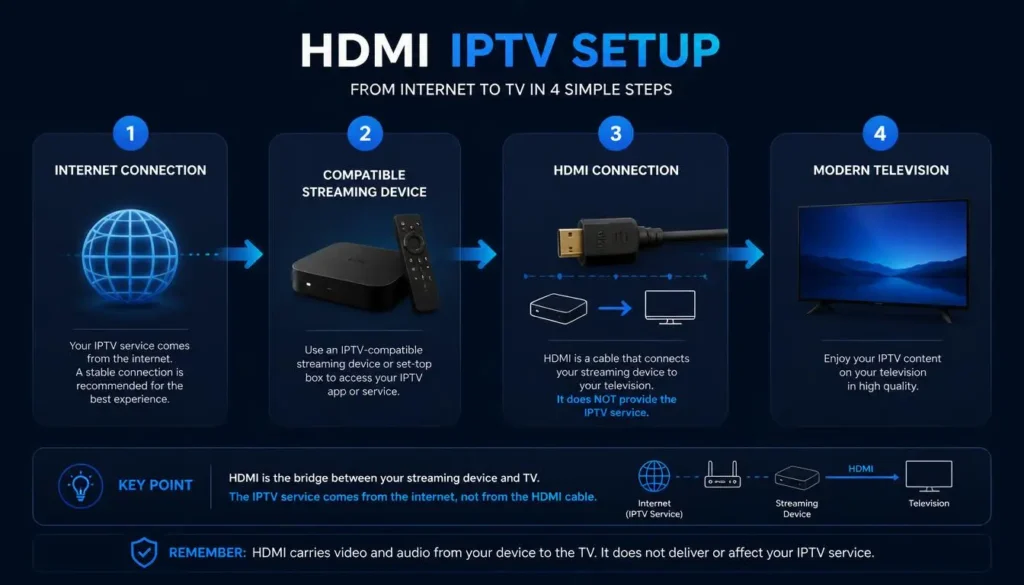
An HDMI IPTV setup lets you display your streaming experience on a television by connecting a compatible external device through an HDMI port. The HDMI connection carries the picture and sound from the streaming device to your TV, while the IPTV service itself runs through the compatible device, application, and internet connection.
This can be useful when your television doesn’t support your preferred IPTV player directly or when you prefer using a dedicated streaming device.
What You Need
01 — Compatible Streaming Device
A supported streaming device with HDMI connectivity.
02 — HDMI Connection
An available HDMI port on your television and the appropriate connection for your device.
03 — Internet Connection
Your streaming device needs a stable network connection to access online content.
04 — Compatible IPTV Player
Use a supported player that works with your device and subscription setup method.
05 — Subscription Details
Have your Great IPTV account information ready when the player requires authentication.
H3 — How to Set Up IPTV Through HDMI
Step 1 — Connect Your Streaming Device
Connect your compatible streaming device to an available HDMI port on the television according to the device manufacturer’s instructions.
Step 2 — Select the Correct HDMI Input
Turn on the television and use its input/source menu to select the HDMI port connected to your streaming device.
For example, if the device is connected to HDMI 2, select HDMI 2 as the television source.
Step 3 — Connect the Device to the Internet
Follow your streaming device’s normal network setup and connect it to your home internet connection.
Step 4 — Open Your Compatible IPTV Player
Once the device is ready, open your supported IPTV application. If you haven’t configured it yet, follow the relevant device instructions elsewhere in this guide.
Step 5 — Complete Your IPTV Login
Enter the subscription details provided to you using the supported login method. After authentication, allow the application to load your available content.
Step 6 — Start Watching on Your TV
Once setup is complete, the television displays the output from your streaming device through the selected HDMI connection.
HDMI Doesn't Provide IPTV by Itself
This is an important distinction.
HDMI is only the connection between your device and television. It doesn’t provide channels, internet access, or an IPTV subscription.
When Is an HDMI IPTV Setup Useful?
An external HDMI-connected streaming device can be useful when your television doesn’t support your preferred application, when its built-in software is outdated, or when you want a dedicated streaming interface instead of relying on the TV’s native operating system.
IPTV Login Not Working? Common Problems & Fixes
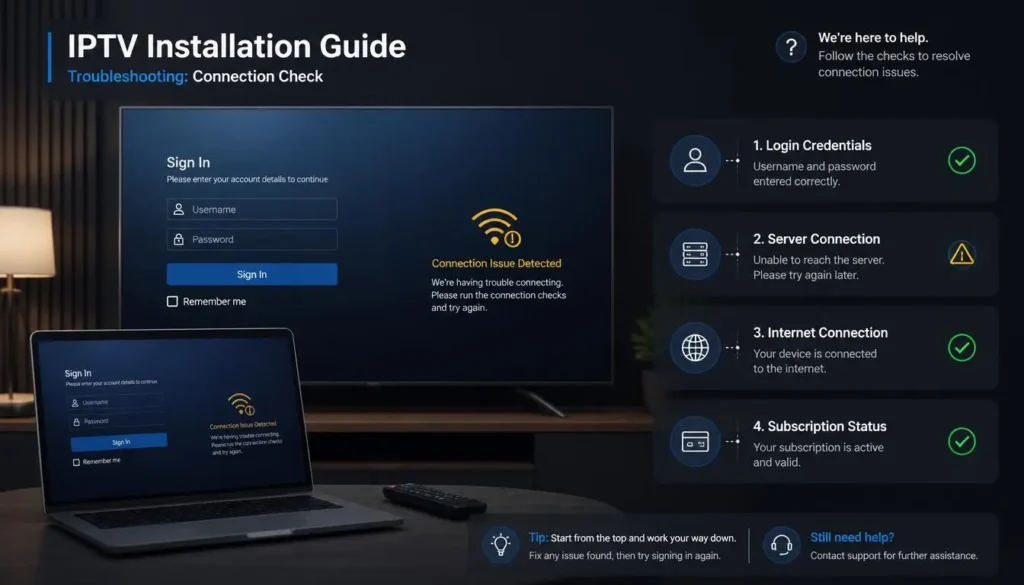
If your IPTV login doesn’t work after installation, the cause may be as simple as an incorrect credential, connection problem, incompatible player, or account issue. Work through the checks below before reinstalling your application.
Incorrect Username or Password
heck that your username and password match the information provided with your subscription. Watch for extra spaces, incorrect capitalization, or characters entered incorrectly.
–Re-enter the credentials carefully rather than copying text that may contain an accidental space.
Server or Portal Information Is Incorrect
If your setup method requires server information, make sure the address has been entered exactly as provided. A missing character can prevent authentication.
–Compare the information in the player with your original setup details.
Internet Connection Problems
Test another website or streaming application on the same device. If other online services aren’t working properly either, troubleshoot the internet connection before changing your IPTV settings.
– Confirm that your device is connected to the correct Wi-Fi or wired network.
IPTV Smarters Login Not Working
If your IPTV Smarters login fails, first confirm your account information, server details, internet connection, and subscription status. If those are correct, verify that you’re using a compatible version of the player for your device.
–Check the credentials against the original subscription information before reinstalling the app.
Content Isn't Loading After Login
A successful login doesn’t always mean everything appears instantly. Allow the player time to synchronize the available account information and content.
If nothing loads, confirm your connection and account status before changing advanced settings.
App Isn't Available on Your Device
Application availability can vary by operating system, device model, app store, and region.
- Check whether another supported IPTV player is officially available for your device rather than installing an unknown application.
Subscription Has Expired
If a previously working login suddenly stops authenticating, check whether your subscription is still active.
– Verify your subscription status or contact Great IPTV support if you’re unsure.
Still having trouble?
Don’t keep changing settings randomly. If you’ve checked your credentials, connection, compatible player, and subscription status but still can’t connect, contact support with:
Your device model · App/player name · General error message
Never send your password publicly or post screenshots containing private login credentials.
IPTV Installation & Login FAQs
What do I need to complete my IPTV login?
You generally need an active subscription, a compatible device, a supported IPTV player, an internet connection, and the account information provided with your subscription. The exact details required depend on the player and setup method you use.
Where can I find my IPTV login details?
Your login information is provided with your subscription setup details. Keep this information private and enter it only into a compatible player you trust. If you cannot locate your details, contact support rather than creating new credentials yourself.
How does the IPTV Smarters login work?
For a supported IPTV Smarters login, open the compatible player and choose the appropriate connection method. Enter the account and server information provided with your subscription, check the details carefully, then sign in and allow the available content to load.
What is the best IPTV setup for Firestick?
The best IPTV for Firestick setup depends on device compatibility, the supported login method, ease of navigation, and the IPTV player you choose. Use a compatible player from a trusted source and follow the Fire TV installation instructions provided earlier in this guide.
Which IPTV app should I use on Android?
Choose an app that is compatible with your Android device and supports the connection method required by your subscription. When comparing the best Android app IPTV options, consider device support, interface quality, playback features, and ease of setup rather than choosing solely by popularity.
What does HDMI IPTV mean?
An HDMI IPTV setup generally refers to using an external streaming device connected to a television through HDMI. HDMI carries the video and audio signal to your television; the IPTV service itself relies on the streaming device, compatible application, subscription, and internet connection.
Can I use IPTV on a Smart TV without an external device?
On compatible Smart TVs, you may be able to use a supported IPTV player directly from the television’s official app store. Availability depends on the TV model, operating system, region, and currently supported applications.
Why is my IPTV login not working?
First check your username, password, server information where required, internet connection, subscription status, and player compatibility. Small typing errors are a common cause of authentication problems.
Can I use the same installation method on every device?
Not necessarily. Fire TV, Android, Apple TV, Samsung, LG, smartphones, tablets, and computers can have different app stores, compatible players, and setup processes. Follow the instructions for your specific device.
Is my IPTV login information private?
Treat your account credentials as private information. Don’t publish your username, password, account URLs, or screenshots containing sensitive login information. Only enter your credentials into compatible applications you trust.
Ready to Complete Your IPTV Setup?
Follow the installation steps for your device, enter your subscription details carefully, and get your Great IPTV experience up and running. If you need help along the way, our support team is available to guide you through the setup process.