

M3U vs MP3: What’s the Difference? (Playlist vs. Audio File)
M3U vs MP3: What’s the Difference? (Playlist vs. Audio File)
We have all felt the frustration of clicking a file only to find it does not play the music we expected. Digital media management often feels like a puzzle, especially when you encounter different file extensions that seem to serve the same purpose. Understanding the M3U vs MP3 distinction is the first step toward organizing your library effectively.
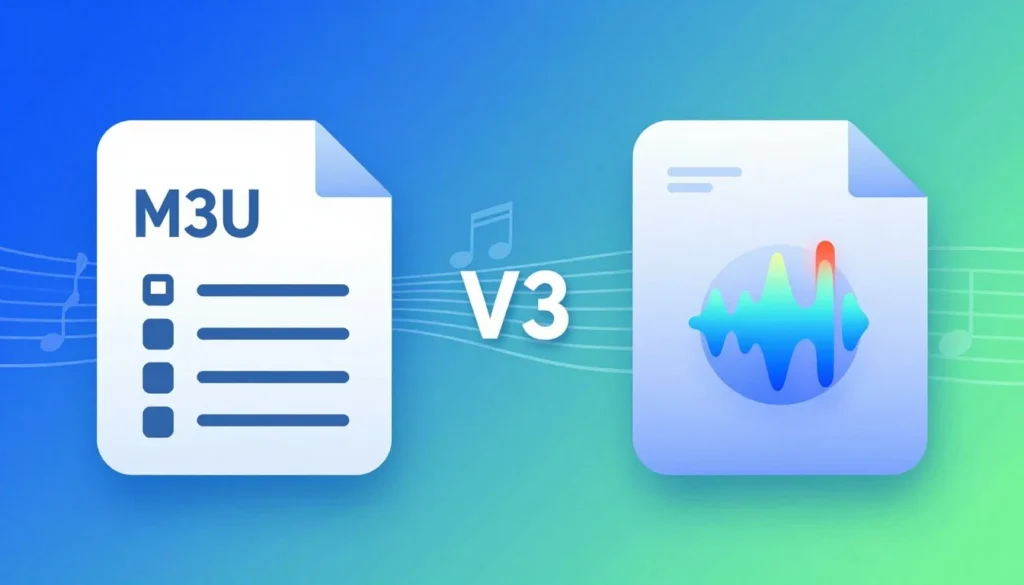
At its core, one format acts as a container for your actual audio data, while the other serves as a simple roadmap for your media player. Recognizing the fundamental difference ( m3u vs mp3 ) allows us to stop guessing and start listening. Whether you are managing offline collections, streaming tracks, or editing metadata, knowing how these files interact is essential.
In this guide, we will explore how these formats handle storage and compatibility. We will also help you decide when to use a playlist and when to rely on a standard audio file. By the end, you will have the confidence to manage your digital music collection like a professional.
Great IPTV 4K · Next Steps
Ready for your next step?
Now that you understand MP3 vs M3U, explore Great IPTV or head straight to our installation guide for help with your setup.
What M3U vs MP3 Means
Understanding the technical distinction between media files and organizational tools is essential for any digital music enthusiast. While both file types appear frequently in your music library, they serve entirely different functions in how your device handles media.
M3U is a playlist file, not an audio format
The m3u format acts as a simple text-based index for your media. An m3u file does not contain any actual sound data or compressed audio streams.
Instead, it stores a list of file paths or web addresses that point your media player toward the location of your songs. When you open this file, your software reads the text instructions to queue up your music in a specific order.

MP3 is a compressed digital audio format
In contrast, an MP3 is a binary file that stores actual digital audio. This format uses lossy compression to reduce the size of sound files while maintaining high quality for playback.
Your media player decodes this binary data directly into sound waves. Because it contains the audio itself, an MP3 file can be played independently by almost any device without needing extra instructions.
The central difference between an M3U file and an MP3 file
The primary difference ( M3U vs MP3) lies in their purpose and independence. An m3u file is a roadmap, whereas an MP3 is the destination itself.
| Feature | M3U File | MP3 File |
|---|---|---|
| Primary Purpose | Organizing media | Storing audio |
| Data Content | Text-based paths | Compressed audio |
| Independence | Dependent on source | Self-contained |
| File Size | Very small | Variable (MBs) |
By recognizing that an m3u file requires external audio files to function, you can better manage your digital library. You cannot play a playlist if the underlying audio files are missing or moved from their original locations.
M3U vs MP3 Comparison at a Glance
When we look at the m3u vs mp3 comparison, we find two distinct file types that serve very different roles in our audio experience. While both are common in music libraries, they function in fundamentally different ways.
Side-by-side comparison of purpose, contents, and file size
An M3U file acts as a simple text document containing a list of file paths or web addresses. Because it only holds instructions, the file size is typically tiny, often just a few kilobytes.
In contrast, an MP3 file is a binary container that holds actual compressed audio data. Its file size is significantly larger because it must store the sound information required for playback, which varies based on the bitrate and duration of the track.
How M3U and MP3 differ in portability and storage
Portability works differently for these two formats. An MP3 file is self-contained, meaning you can move it to any device and play it immediately without needing extra files.
An M3U file is not portable in the same way. If you move an M3U playlist to a new computer, it will fail to play unless the original audio files are also moved to the exact same file path locations.
Which file contains playable audio data
Only the MP3 format contains the actual audio data that your speakers can translate into sound. The M3U file is merely a map that tells your media player where to find the audio files on your hard drive or the internet.
Comparison table covering compatibility, editing, streaming, and offline use
| Feature | M3U Playlist | MP3 Audio File |
|---|---|---|
| Contains Audio | No | Yes |
| Primary Use | Organizing tracks | Storing music |
| Streaming | Yes (via URLs) | No (requires download) |
| Offline Use | Requires local files | Works independently |
| Editing | Text editor | Audio software |
How the M3U Format and Playlists Work
Unlike the standard mp3 format, M3U files act as simple roadmaps for your media player. They do not contain actual audio data but instead provide a list of instructions that tell your software where to find specific tracks. By using these files, we can organize large collections without duplicating the underlying media files on our storage drives.
How an M3U file stores file paths and streaming URLs
An M3U file is essentially a text document that contains a list of locations. These locations can be local file paths pointing to a folder on your computer or direct streaming URLs for internet radio stations. When you open the file, your media player parses these text lines to locate the source of the audio.
Plain M3U versus extended M3U with metadata
A plain M3U file is a basic list of file paths, one per line. In contrast, an extended M3U file includes additional information known as metadata. This metadata often provides details like the track duration, artist name, and song title, which helps the player display information even before the file starts loading.
| Feature | Plain M3U | Extended M3U |
|---|---|---|
| Content Type | File paths only | Paths and metadata |
| Metadata Support | None | Title and duration |
| Compatibility | Universal | Modern players |
| Primary Use | Simple lists | Rich media libraries |
How a media player reads playlist entries
Media players process these entries sequentially, moving from the first line to the last. The software reads the path, attempts to access the file, and buffers the data for playback. This process happens in the background, allowing for a seamless transition between songs regardless of the underlying mp3 format of the audio files.
Why broken paths, expired URLs, and missing files affect playback
Playback issues occur when the media player cannot reach the destination specified in the M3U file. If you move a file to a new folder, the path becomes broken, and the player will skip the track. Similarly, expired streaming URLs or restricted permissions will prevent the player from loading the content, resulting in an error message.
How the MP3 Format and Audio Files Work
We often take for granted how MP3 files manage to pack high-quality sound into such small digital spaces. In the M3U vs MP3 comparison, unlike a simple text-based list, an MP3 acts as a self-contained vessel for your audio data. This allows you to enjoy your favorite tracks without needing an external m3u player to organize the playback sequence.
How MP3 compression reduces digital audio size
The MP3 format uses a process called lossy compression to shrink file sizes significantly. It achieves this by identifying and removing audio frequencies that the human ear struggles to perceive. By discarding these redundant bits of data, the format creates a much smaller file while maintaining a sound profile that remains acceptable for most listeners.
Bitrate, sound quality, and file-size trade-offs
Bitrate serves as the primary lever for balancing audio fidelity against storage capacity. A higher bitrate, such as 320 kbps, preserves more detail but results in a larger file size. Conversely, lower bitrates save space but may introduce audible artifacts or a loss of clarity in complex musical passages.
MP3 metadata, album artwork, and track organization
Beyond the raw audio, MP3 files utilize ID3 tags to store essential information. These tags house metadata like the artist name, song title, album, and even embedded cover art. This internal organization ensures that your music library remains sorted and visually appealing across various software platforms.
Why an MP3 file can play independently without a playlist
Because the audio data is baked directly into the file, an MP3 does not require a secondary instruction set to function. You can simply click a single file to trigger playback in any standard media application. This independence makes the format far more versatile than a playlist, which would be useless if the underlying audio files were missing or moved from an m3u player directory.
Compatibility With M3U Players and MP3 Players
Understanding how different devices handle media files is essential for a smooth listening experience. While some formats are universally recognized, others require specific software to interpret their instructions correctly.
Devices and apps that commonly support M3U playlists
Using VLC Media Player, Kodi, and compatible IPTV applications
M3U files act as roadmaps for your media rather than the actual audio data. Applications like VLC Media Player and Kodi are designed to read these text-based instructions to locate and stream content. Many IPTV applications also rely on this format to organize live channel lists for users.
Devices and apps that commonly support MP3 files
Using Windows Media Player, Apple Music, Android, iPhone, and car stereos
In contrast, an mp3 file is a self-contained audio container that almost every modern device can play. You will find native support for this format in Windows Media Player and Apple Music. Furthermore, mobile operating systems like Android and iOS, along with most car stereos, play an mp3 file without needing extra configuration.
Why M3U support can vary more than MP3 support
The compatibility of an M3U file is often less predictable than that of a standard audio file. Because these playlists rely on external file paths or streaming URLs, the player must successfully resolve network permissions and specific codecs to function.
If the syntax within the playlist is incorrect or the linked server is offline, the player will fail to load the content. This dependency on external factors makes M3U support more complex than the straightforward playback of a local mp3 file.
Need Help With Your IPTV Setup?
Our support team is ready to assist you.
Fast response • 24/7 Support Available
Key Differences M3U VS MP3
When we look at how our devices handle music, we must distinguish between simple text instructions and complex binary audio files. While both file types appear in our folders, they perform completely different roles for an mp3 player.
Playlist instructions versus stored audio content
An M3U file acts as a roadmap for your media. It contains a list of file paths or web addresses that tell your software where to find the music you want to hear.
In contrast, an MP3 file contains the actual sound data. It is the audio itself, which your device decodes into the music you enjoy.
Internet access and local playback requirements
M3U files often rely on external links to function correctly. If you use a playlist that points to online streams, you must have an active internet connection to hear the audio.
MP3 files are self-contained units. Once you download them to your local storage, you can play them anytime without needing a network connection.
Text-based M3U files versus binary-compressed MP3 files
You can open an M3U file in any basic text editor to see the file paths inside. It is a lightweight document that consumes almost no storage space.
An MP3 file is a binary-compressed format. It uses complex algorithms to shrink audio data while maintaining quality, making it much larger than a simple text playlist.
Editing, sharing, backing up, and organizing each file type
Managing these files requires different strategies. You can easily edit an M3U file to change the order of your songs or add new tracks by typing new paths.
Backing up MP3 files is critical because they contain your actual music library. If you lose an MP3 file, you lose the song, whereas losing an M3U file only removes your custom sequence.
What happens when we move, rename, or delete linked media
If you move or rename an MP3 file, the M3U playlist will likely break. The playlist still looks for the file in the original location, and it cannot find the audio if the path has changed.
The MP3 file itself remains perfectly functional even if the playlist breaks. You can still open the audio file directly in your favorite mp3 player without any issues.
| Feature | M3U File | MP3 File |
|---|---|---|
| Primary Role | Playlist/Reference | Audio Data |
| File Format | Plain Text | Binary Compressed |
| Storage Size | Very Small | Large |
| Dependency | Needs Audio Files | Independent |
When to Choose M3U vs MP3, or Both
Understanding when to utilize playlist files versus audio files is essential for any music enthusiast. We find that the best approach often involves leveraging the unique strengths of both formats to create a seamless listening experience.
Choose M3U for organizing large music libraries
When your collection grows into thousands of tracks, managing individual files becomes cumbersome. M3U files allow us to create virtual groupings without duplicating the actual audio data on our hard drives.
By using these playlists, we can categorize music by genre, mood, or artist across different folders. This keeps our primary storage clean while providing quick access to curated selections.
Choose M3U for authorized internet radio and streaming playlists
M3U files serve as the standard for streaming because they act as a bridge to remote content. We use them to point our media players toward authorized internet radio stations or cloud-based audio streams.
Since these files contain URLs rather than audio data, they remain lightweight and easy to share. They ensure that we always connect to the most current stream provided by the broadcaster.
Choose MP3 for offline listening and direct file sharing
When we need to listen to music without an internet connection, the MP3 format is our best choice. It contains the actual compressed audio data, making it a self-contained unit that plays on almost any device.
Sharing music with friends or moving files to a portable player is simple with MP3s. We do not have to worry about broken links or missing paths because the audio is embedded directly within the file.
Use M3U and MP3 together for flexible music management
The most effective strategy involves using MP3s as our base storage and M3U files as our navigation layer. This combination gives us the portability of standalone files and the organizational power of custom playlists.
| Feature | M3U Playlist | MP3 Audio File |
|---|---|---|
| Primary Purpose | Organization/Streaming | Playback/Storage |
| Data Content | Text/File Paths | Compressed Audio |
| Portability | Requires Source Files | Fully Independent |
| Best Use Case | Curated Collections | Offline Listening |
Example workflow for building an M3U playlist from local MP3 files
To build a reliable playlist, we first ensure all our MP3 files are stored in consistent, well-labeled folders. We then open our preferred media player and drag the desired tracks into a new queue.
After arranging the order, we select the “Save Playlist” option and choose the M3U format. We must verify that the file paths are relative to the playlist location to ensure the list remains functional if we move our music folder to a different drive.
Practical M3U and MP3 Considerations
When your media library stops working as expected, knowing how to diagnose the issue is essential. Whether you are dealing with a broken playlist or a silent audio file, systematic checks can save you significant time and frustration.
How to troubleshoot an M3U playlist that will not load
Checking file paths, URL availability, permissions, and character encoding
If your M3U playlist fails to open, the most common culprit is a broken file path. Since these files act as maps, they cannot find your music if the folder structure has changed or if the drive letter is different. Always verify that the absolute or relative paths inside the text file match the current location of your audio files.
You should also check if the URLs in your playlist are still active. If you are streaming internet radio, the server might have changed its address or gone offline. Additionally, ensure your operating system has the correct read permissions for the file and that the text encoding is set to UTF-8 to avoid errors with special characters.
How to troubleshoot MP3 playback and quality problems
Checking file corruption, unsupported bitrate, metadata, and volume differences
When an MP3 file refuses to play, it may be corrupted due to an incomplete download or a faulty storage device. You can often fix minor header issues using specialized audio repair software. If the file plays but sounds distorted, check if your player supports the specific bitrate or sample rate of the file.
Inconsistent volume levels between tracks are another common annoyance. You can resolve this by using tools that apply “ReplayGain” to normalize the perceived loudness of your library. Finally, ensure your metadata tags are complete, as missing artist or album information can cause sorting issues in your media player.
| Issue Type | Common Cause | Recommended Fix |
|---|---|---|
| M3U Load Failure | Broken file path | Update path in text editor |
| MP3 Playback Error | File corruption | Re-download or repair header |
| Audio Distortion | Unsupported bitrate | Convert to standard format |
| Volume Mismatch | Lack of normalization | Apply ReplayGain tags |
Why an M3U file cannot be converted directly into an MP3
Separating playlist export from lawful audio downloads or conversions
It is important to understand that an M3U file is merely a text document containing instructions. It does not contain any actual audio data, which makes direct conversion into an MP3 format impossible. This is one of the most common points of confusion in the M3U vs MP3 discussion — you cannot “convert” a map into a house; similarly, you cannot turn a playlist into an audio file.
If you want to move your music, you must physically copy the audio files themselves. Distinguish between exporting a playlist, which simply saves your track order, and downloading audio, which involves transferring the actual media. Always ensure that any audio you download or convert is done through lawful channels to respect the rights of creators.
Copyright, privacy, and security considerations for playlist links
Sharing M3U playlists can pose security risks if the links point to untrusted or malicious servers. Always inspect the contents of a playlist file before opening it in your media player. Furthermore, be mindful of copyright laws when sharing playlists that contain links to copyrighted audio content.
Privacy is another concern, as some streaming URLs may track your IP address or listening habits. Only use playlists from reputable sources to protect your data and ensure your digital environment remains secure. By following these best practices, you can enjoy a seamless and safe listening experience.
Conclusion
Understanding the key differences in the M3U vs MP3 comparison empowers you to manage your media collection with precision. We recognize that M3U files serve as simple text-based roadmaps for your audio, while MP3 files act as the actual containers for your sound data.
You should rely on M3U playlists when you need to organize large libraries or stream content from web sources. These files provide the structure required to keep your favorite tracks in a specific order across various media players.
Choose MP3 files for your offline listening needs and direct file sharing. This format ensures your music remains portable and playable on almost any device without needing an active internet connection.
We suggest using both formats together to achieve the best results for your digital audio management. By combining the organizational power of playlists with the high-quality storage of compressed audio, you gain full control over your listening experience.
Start building your custom library today by applying these technical insights. Your music collection will become easier to navigate and enjoy across all your preferred platforms.
FAQ
What is the primary difference between an M3U and an MP3 file?
The core difference between an M3U file and an MP3 file lies in their purpose: an MP3 file is a container that stores actual compressed digital audio data, whereas an M3U file is a plain-text playlist that simply provides directions to where audio files or streams are located. When we open an MP3, we are playing a sound file; when we open an M3U, we are telling our media player which files to play next.
Can we convert an M3U format directly into an MP3 format?
We cannot technically “convert” an M3U into an MP3 because the M3U contains no audio data to transform. Since the M3U is just a list of file paths or URLs, we must locate the original source audio files (such as those on a local drive or a server) and save those as MP3s individually. Converting the text list itself will not produce a playable audio file.
Which applications should we use as an M3U player or an MP3 player?
For standard MP3 playback, we recommend ubiquitous tools like Windows Media Player, Apple Music, or even hardware-based car stereos. If we are managing complex playlists or IPTV streams, a dedicated M3U player like VLC Media Player or Kodi is often the best choice, as these programs are designed to interpret the text-based instructions and metadata within the M3U format.
Why does our M3U playlist stop working when we move our MP3 files to a new folder?
Because an M3U file stores specific file paths, any change to the location or name of the linked MP3 files will result in a broken path. When we move our music library, the M3U can no longer find the files at the addresses listed in its text. To fix this, we must either move the files back or update the M3U file with the new directory information.
In an MP3 vs M3U comparison, which format uses more storage space?
We find that MP3 files consume significantly more storage space because they hold the binary information required to reproduce sound. An M3U file is almost negligible in size—often just a few kilobytes—because it only contains a few lines of text. However, remember that an M3U is useless without the much larger audio files it references.
Do we need an internet connection to use M3U and MP3 files?
We do not need an internet connection to play local MP3 files stored on our devices. For M3U playlists, the requirement depends on the content; if the playlist points to local MP3s on our hard drive, we can play them offline. If the M3U points to streaming URLs or internet radio stations, a stable internet connection is mandatory for our media player to access the data.
What are the benefits of using the M3U format for our music library?
We recommend using the M3U format when we want to organize vast collections of audio without duplicating the actual files. It allows us to create custom “best of” lists, categorize genres, or manage IPTV streams efficiently. It provides a flexible way to control playback order across different software like Winamp or mobile media apps while keeping our original MP3 files organized in their primary folders.
How do we troubleshoot an MP3 file that won’t play?
When we encounter playback issues with an MP3, we first check for file corruption or an unsupported bitrate. If the file is metadata-heavy or uses a non-standard encoding that our specific mp3 player cannot decode, we might need to re-encode the file using a tool like Audacity to ensure it meets standard specifications.