
TiviMate Buffering: 9 Fixes That Actually Work
Have you ever wondered why your favorite live show freezes during its most exciting moment? If tivimate buffering happens often, your internet connection, hardware, or streaming source usually causes it, not the application.
The software only works as a media player, so it rarely causes playback interruptions by itself. On Firestick, Android TV, or Google TV, simple adjustments can often fix these performance problems.

If tivimate keeps buffering, this guide offers nine practical solutions for smoother viewing. Every setup differs, so no single fix works in every situation. We cover basic network checks and advanced provider-related troubleshooting.
Key Takeaways
- Most playback issues originate from your home network or the streaming source.
- The application functions as a player and is rarely the root cause of performance drops.
- Testing your internet speed is the first step toward finding a permanent solution.
- Hardware limitations on devices like Firesticks can impact how smoothly content loads.
- You may need to try multiple methods to identify the specific cause of your connection trouble.
Why Is TiviMate Buffering?
TiviMate is a powerful tool, but it depends on outside factors for high-quality video. The app is only a media player; it does not host or provide the content on your screen.
When you experience tivimate buffering, the problem usually involves the connection between your device and the stream source. This difference helps you find the cause of playback problems.
TiviMate Is a Player, Not a Provider
Think of TiviMate as a high-end television set. A TV displays signals from a cable company, while TiviMate displays streams from your IPTV provider. If the signal is weak or interrupted, the player cannot fix the feed.
The app does not control the video server, so it cannot ensure smooth playback when that source is overloaded. You are watching a live data stream that needs a constant, stable path to your device.

The 4 Most Common Causes of Buffering
Most playback problems fit into four categories. Finding your category is the key to solving tivimate buffering.
- Internet Connection: Your download speed might be insufficient for high-definition streams.
- Device Performance: Older hardware may struggle to process heavy video files, leading to tivimate freezing.
- App Settings: Incorrect buffer sizes or hardware decoding options can cause stuttering.
- Stream Source: The provider’s server might be down or experiencing high traffic.
You should also tell buffering and tivimate freezing apart. Buffering shows a spinning icon as the app waits for data. Freezing often means the app or device stopped responding after a software crash or memory overload.
| Issue Type | Primary Symptom | Likely Cause |
|---|---|---|
| Buffering | Spinning loading icon | Network or server lag |
| Freezing | Screen stays static | Device memory or app crash |
| Audio Sync | Sound lags behind video | Hardware decoding mismatch |
Checking these four areas can stop tivimate buffering and bring back your favorite shows. Most users solve these interruptions by adjusting their network or app settings.
Quick Checks Before You Start
Finding the root cause of playback issues starts with a few simple observations. Before changing advanced settings, decide whether the problem happens often or only sometimes. This check can show whether your home network or the stream source causes the issue.

Does It Buffer on Every Channel or Only Some?
If every channel has problems, your local internet connection or streaming device likely causes them. If tivimate lagging affects the whole service, check your router and physical cables first. A total failure to load content usually points to a bottleneck in your home network.
However, if only a few channels struggle, the provider’s server often causes the problem. High-definition streams may fail while standard channels work perfectly. The source may be overloaded or facing temporary downtime.
Does It Happen at Certain Times of Day?
Notice when your service struggles most. If tivimate lagging happens mainly during peak evening hours, your Internet Service Provider might throttle your connection. This often happens when many neighborhood users stream at once, causing network congestion.
Keep a brief log of failed channels and the exact times they occur. This record can show whether the problem follows a pattern or results from a random glitch. That preparation helps you avoid unnecessary troubleshooting later.
Fix 1: Run an Internet Speed Test
The best way to troubleshoot tivimate buffering is to check your internet connection first. Your plan speed may not match the speed reaching your streaming device. Run a test directly on your Firestick, Android TV, or Google TV for an accurate reading.
Download a browser or dedicated speed test app on your streaming device. Run the test near your router, or connect the device by cable. This shows whether your home network or the signal to your television causes the problem.
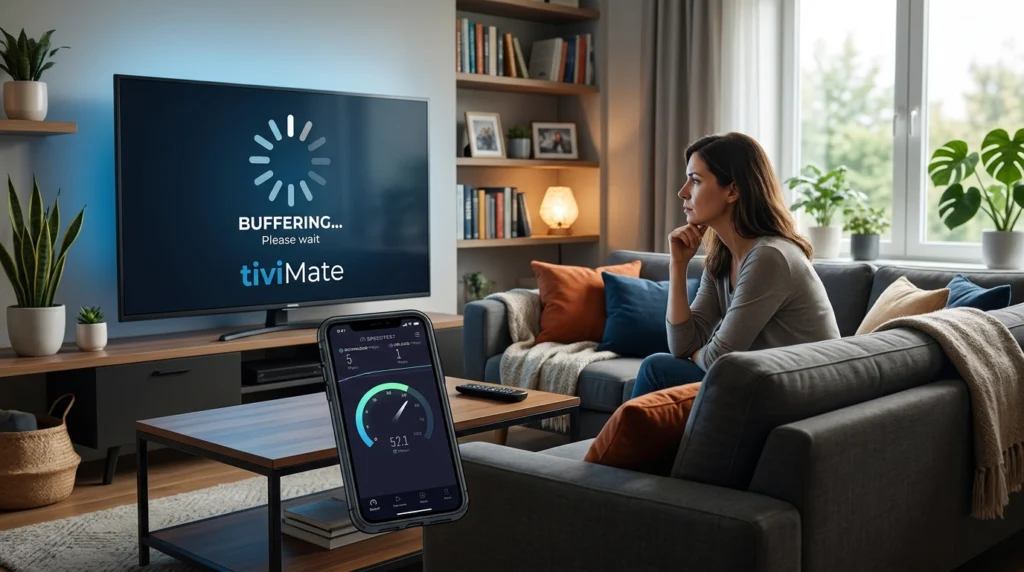
Raw download speed is only one part of the equation. Latency and jitter can also cause playback problems, even with fast connections. If others game or download large files, bandwidth drops, causing tivimate buffering during peak hours.
Recommended Internet Speeds for SD, HD and 4K
Streaming quality depends on your consistent throughput. Use the table below to check whether your plan supports your preferred content resolution.
| Quality Level | Minimum Speed | Recommended Speed |
|---|---|---|
| Standard Definition (SD) | 3 Mbps | 5 Mbps |
| High Definition (HD) | 8 Mbps | 15 Mbps |
| 4K Ultra HD | 25 Mbps | 50 Mbps |
Compare test results during normal viewing with times when lag is worst. Wild speed changes may mean your internet service provider is throttling the connection. Your local network may also be congested, so test at different times to see whether network congestion or connection instability causes your streaming problems.
Fix 2: Restart Your Router and Streaming Device
A complete restart of your home network and streaming hardware can fix many playback errors. Persistent tivimate buffering firestick issues often come from a temporary software glitch or stale network connection. The power cycle clears hidden states and forces equipment to create a fresh link to your internet service provider.
Follow a specific order so your network stabilizes before your player reconnects. Please use these steps to refresh your setup:
- Unplug your router from the power outlet and wait at least 30 seconds.
- While the router is off, unplug your streaming device from its power source.
- Plug your router back in and wait several minutes for all indicator lights to show a stable connection.
- Reconnect your streaming device to power and allow it to fully boot up.
- Open your application and test the stream again to see if the performance has improved.
Let the router fully initialize so your device receives a valid IP address and a stable server path. If you rush, your device may struggle to reconnect and cause more tivimate buffering firestick problems. These extra minutes let your hardware reset properly and often clear minor connectivity hurdles that make playback stutter.
Fix 3: Use Ethernet or Improve Your Wi-Fi Signal
Improving your physical connection is often the fastest way to stop tivimate buffering. If your streaming device and router support wired connections, an Ethernet cable offers the most reliable choice. It removes wireless interference and sends a steady data flow straight to your device.
A wired setup is not practical for many users because rooms may be far apart. If you use Wi-Fi, move your router closer to the center of your home. Fewer walls and less large furniture between devices can greatly improve signal strength.
Network congestion also affects stream performance. Limit high-bandwidth use from gaming consoles or computers while watching television. Turn off background downloads on other gadgets to free capacity for your stream.
A strong signal can reduce tivimate buffering, but it cannot fix a poor source stream. If your provider sends a low-quality feed, even a perfect connection may not stop playback errors. Use the table below to compare how connection methods affect overall streaming stability.
| Connection Type | Stability Level | Setup Difficulty |
|---|---|---|
| Ethernet Cable | Excellent | Low |
| 5GHz Wi-Fi | Good | Medium |
| 2.4GHz Wi-Fi | Fair | Medium |
| Mobile Hotspot | Poor | High |
Fix 4: Clear the TiviMate Cache
Clearing the cache is a common fix when TiviMate lagging affects your favorite shows. Apps store temporary files to load faster. However, these files may become corrupted or bloated and cause performance issues.
When the app runs poorly, removing these files can quickly improve performance. Find this option in the app settings or your device’s app management section. Select the app from the list, then choose the option to clear its cache.
Remember, clearing the cache cannot fix a weak internet connection or an overloaded stream source. If you still see TiviMate lagging, your network speed or provider’s server capacity may cause the problem. Retest your stream before trying more complex solutions.
| Troubleshooting Step | Primary Goal | Impact on Performance |
|---|---|---|
| Clear Cache | Remove temporary files | Low to Medium |
| Restart Device | Refresh system memory | Medium |
| Check Internet | Verify bandwidth | High |
| Update App | Fix software bugs | Medium |
Fix 5: Adjust TiviMate Buffer and Playback Settings
Smooth streaming often starts with your app settings. If tivimate buffering continues, the default setup may not fit your network or device.
There is no single “perfect” setting for every user. A setting that works on a high-end Android TV box may fail on a budget-friendly streaming stick. Since hardware varies, adjust settings patiently.
Before you begin, write down your current configuration. You can restore it if needed. Change one setting at a time, such as buffer size or the hardware decoder settings.
Then test the same stream to check for improvement.
If a change worsens playback, switch it back at once. Testing one variable at a time helps you find the best balance for your setup. This careful method can stabilize your connection, avoid new problems, and provide smoother viewing.
Fix 6: Lower the Stream Quality
Sometimes, the simplest way to stop tivimate buffering is to lower your stream resolution. High-definition video looks great, but it can overwhelm your internet connection or device hardware. A lower quality setting reduces the data needed for smooth playback.
This change helps older streaming devices that struggle with high-bitrate video. Lower quality reduces processing demands and often creates a more stable viewing experience.
Use this method to test your network limits. If the stream plays perfectly at a lower resolution, you have confirmed that your connection capacity or device stability is the root cause of tivimate buffering. If the issue continues at the lowest setting, the source stream likely causes the problem instead of your local setup.
Fix 7: Free Up Storage and Close Background Apps
A cluttered streaming device can create performance issues that seem like network problems. Low storage makes it harder to process high-definition video smoothly. This strain may cause tivimate freezing, which users often mistake for slow internet.
Your Firestick or Android TV box needs enough free space to work correctly. Nearly full storage prevents the system from caching temporary files well. Review your apps and remove those you no longer use to reclaim space.
Background processes can also use important CPU and RAM resources. Other apps may update or sync data, even when you do not use them. Closing them can reduce tivimate freezing by giving your device more power for streaming.
Follow these steps to improve your device’s performance:
- Navigate to your device settings and select the “Applications” or “Apps” menu.
- Review the list of installed software and uninstall any apps that are not essential.
- Check for “Running Services” or “Background Apps” and force-stop any programs you do not need.
- Restart your device completely to clear the temporary memory and start fresh.
These steps reduce device strain, but they cannot fix internet or stream source problems. Slow network speeds or a provider outage can still interrupt playback. If tivimate freezing continues, check your connection quality after cleaning the device.
Fix 8: Update TiviMate and Your Device Software
Keep your software current to support smooth streaming. Outdated apps and operating systems may not work well with modern streaming servers. This mismatch can cause tivimate freezing during high-demand broadcasts.
Check the app store on your Firestick, Android TV, or Google TV for the latest player version. Developers release patches to fix bugs that cause tivimate lagging. Then open your device settings and check for pending system firmware updates.
After installing available updates, restart your hardware so the changes can take effect. A fresh reboot clears temporary files and helps new software load correctly. Updates improve stability, but they may not fix every playback issue.
| Update Type | Primary Benefit | Frequency |
|---|---|---|
| TiviMate App | Fixes playback bugs | Monthly |
| Device Firmware | Improves system stability | Quarterly |
| Security Patches | Protects your data | As released |
Fix 9: Check Your Provider and VPN
If you have exhausted every other troubleshooting step and tivimate keeps buffering, check your content source. The problem likely comes from your provider connection or network security settings.
When Only Some Channels Buffer
If you notice that only specific channels fail while others play perfectly, the stream source is almost certainly at fault. The server hosting those feeds may be overloaded or facing technical difficulties.
In these cases, you can do very little to fix the stream yourself. Contact your service provider and report the specific channels causing trouble. They can often reset the stream or provide a more stable link for your account.
Turn Off Your VPN to Test
Your privacy software might also explain why tivimate keeps buffering. Encryption overhead or a slow server location can disrupt data flow for high-quality video playback.
Temporarily disconnect your VPN and play the problematic stream again. If the video plays smoothly, your VPN server or routing is likely the culprit.
Try a different VPN server location to see whether performance improves. If you want privacy protection, turn your VPN back on after testing.
TiviMate Buffering on Firestick vs Android TV
If you face tivimate buffering firestick problems, the fix often depends on your device’s operating system. The app looks the same, but device hardware and software affect how streams load and display.
Firestick Tips
When tivimate buffering firestick issues occur, first manage the device’s limited resources. Amazon devices may struggle when storage is nearly full or many background processes run at once.
- Perform a full restart by unplugging the power cable for 30 seconds to clear temporary memory.
- Check your available storage in the settings menu and uninstall unused apps to free up space.
- Ensure your Wi-Fi connection is stable, as Firestick devices are sensitive to signal interference behind the television.
- Close all background applications before launching your media player to dedicate maximum processing power to the stream.
Android TV and Google TV Tips
Android TV and Google TV usually have stronger hardware, but they still need regular maintenance for smooth performance. Frequent system updates can improve network compatibility and overall stability.
For playback issues, check your device settings for pending system updates. A stable network matters, so use a wired Ethernet connection when supported to avoid wireless congestion.
You may also need to test your hardware decoder settings in the app menu. Android devices use different chipsets, so switching between software and hardware decoding may stop stuttering or freezing during high-definition playback.
Quick Fix Summary
Use this checklist to address tivimate buffering and restore your viewing experience. Instead of changing settings at random, find the cause by testing each solution separately.
Note which adjustment improves your stream. This sequence helps show whether the problem involves your connection, device, or service provider.
Follow these nine steps in order to troubleshoot your setup effectively:
| Step | Action Category | Focus Area |
|---|---|---|
| 1-3 | Connectivity | Speed test, router restart, and signal strength |
| 4-6 | Software | Cache, buffer settings, and stream quality |
| 7-9 | System | Storage, updates, and provider/VPN status |
This structured approach can help you systematically eliminate tivimate buffering. Always test your connection and device performance before blaming your external stream source.
Frequently Asked Questions
If playback problems occur, you may have questions about improving your streaming experience. These answers cover common performance issues on devices such as Firestick and Android TV.
Why Does TiviMate Keep Buffering?
When tivimate keeps buffering, an unstable internet connection or an overloaded provider server is often responsible. The app only plays the data stream sent to your device. A crowded local network can make video stutter or pause often.
How Much Internet Speed Do I Need for TiviMate?
Your needed speed depends on the content resolution. A stable 5 Mbps usually supports standard definition (SD) streams. For smooth 4K playback, aim for at least 25 Mbps to avoid constant interruptions.
Does Clearing the Cache Fix TiviMate Buffering?
Clearing the cache can fix minor playback glitches by removing corrupted temporary data. This first step helps tivimate buffering firestick users, but not poor speeds or provider server outages. It is simple maintenance that helps the app run efficiently.
Why Does TiviMate Buffer Only at Night?
Nighttime buffering often signals network congestion in your local area. During peak evening hours, many neighbors share the same internet infrastructure, slowing your connection.
A VPN might also cause TiviMate buffering because some VPN servers become overloaded then. Test your connection without the VPN to see whether encrypted routing is throttled or slowed.
Conclusion
TiviMate is a powerful media player, but smooth video depends on your external setup. When TiviMate buffering occurs, check the entire network chain instead of blaming one component. Begin by checking your internet speed and restarting your hardware.
If the problem continues, follow the remaining steps. Improve your Wi-Fi signal, clear the app cache, and change playback settings to fix common interruptions. You may need to lower stream quality or check software updates on your Firestick, Android TV, or Google TV device.
If you have tried every fix and only some channels fail, the issue may be your stream source. The team at Great IPTV 4K publishes simple guides like this one, including our IPTV setup guide, to help you get a stable connection. Share your results, or tell us which step fixed your stream today.
Need Help Choosing the Right IPTV Plan?
Compare our plans, or message our team with any question about setup, devices or your account. We’re happy to help.