Best IPTV No Buffering: The 48-Hour Test to Find One (2026)
Best IPTV No Buffering: The 48-Hour Test to Find One (2026)
Stop trusting promises. Measure smooth streaming on your own network, your own device, at your busiest hour.
The best IPTV no buffering is not a service that promises zero buffering. It is one that stays smooth on your connection, on your device, during the hours you actually watch. You can measure that in 48 hours, and this guide shows you how.
Most lists of the best IPTV no buffering rank services by what they claim. This one gives you the tools to check the claim yourself: a four-swap test that shows whether the problem is you or the service, a 10-point scorecard, a 48-hour peak-hour test with a log, and a nine-step IPTV buffering fix plan in the order that saves the most time.
One disclosure up front. We sell IPTV at Great IPTV 4K, so we have an interest here. We built the method so it works on any service, ours included.
Key takeaways
- No provider can guarantee zero buffering, so the best IPTV no buffering is the one that buffers rarely, briefly and recovers by itself.
- Stable IPTV comes from a good match between the service, your network and your device, not from a bigger promise.
- Change one thing at a time to find out who is at fault: your setup or the service.
- Test between 7 and 10 pm, when networks are busiest. The best IPTV no buffering has to prove itself then, not at noon.
- Score any service out of 10 before you pay for a long plan.
- Start with the shortest plan, and read the refund policy before you pay.
What “Best IPTV No Buffering” Really Means
Buffering happens when your player runs out of video before the next piece arrives. The picture stops, a spinner appears, and the app waits. Every streaming service does this sometimes, including the biggest ones.
So when you search for the best IPTV no buffering, you are really asking for a service where this happens rarely, lasts a second or two, and fixes itself. That is a result you can test. A promise on a sales page is not. Real IPTV without buffering is something you measure, not something you are promised.
Think of It as a Buffer Budget
A stream needs a steady supply of data, and your connection has to deliver it every second, not on average. Picture a bucket the player keeps topped up. If data arrives slower than the player uses it, the bucket empties and the video stops.
That is why a fast speed test can still end in buffering. The test shows your best moment. Streaming needs your worst one to stay good enough. A service can only be the best IPTV no buffering on your screen if the budget holds at your busiest hour.
At your busiest hour, your connection should deliver at least double what the stream needs. This is a guideline we use, not an official figure. The sources at the end of this guide list the minimum speeds for HD and 4K.
Who Controls What
Most buffering arguments go nowhere because nobody separates the parts. Here they are.
| Part of the chain | Who controls it | Typical buffering cause |
|---|---|---|
| Source servers and stream quality | The provider | Overloaded server, one weak channel feed |
| Your internet plan and your ISP’s network | You and your ISP | Evening congestion, throttled routes |
| Router and Wi-Fi | You | Weak signal, crowded 2.4 GHz band |
| Streaming device | You | Full storage, old hardware, low memory |
| Player app and settings | You | Wrong decoder, tiny buffer, bloated cache |
Four of the five rows are on your side, which is why fixing your own setup first is not an excuse for the provider. It is the fastest way to find out what the provider is really responsible for when you are chasing the best IPTV no buffering.
When does your IPTV buffer?
Answer one question and we will point you to the part of this guide that helps most on your way to the best IPTV no buffering.
Your answer is not stored or shared. It only shows you where to start.
Is It You or the Service? The 4-Swap Test
The 4-swap test is the first step toward the best IPTV no buffering, because it shows where the problem lives before you judge any provider. The method is simple: change one thing at a time and keep everything else the same. Each swap rules out one part of the chain. It is also the quickest way to learn how to stop IPTV buffering, because you only fix the part that is really at fault.
Open another streaming app at the moment IPTV buffers. If that app stalls too, the problem is your network and no provider can fix it.
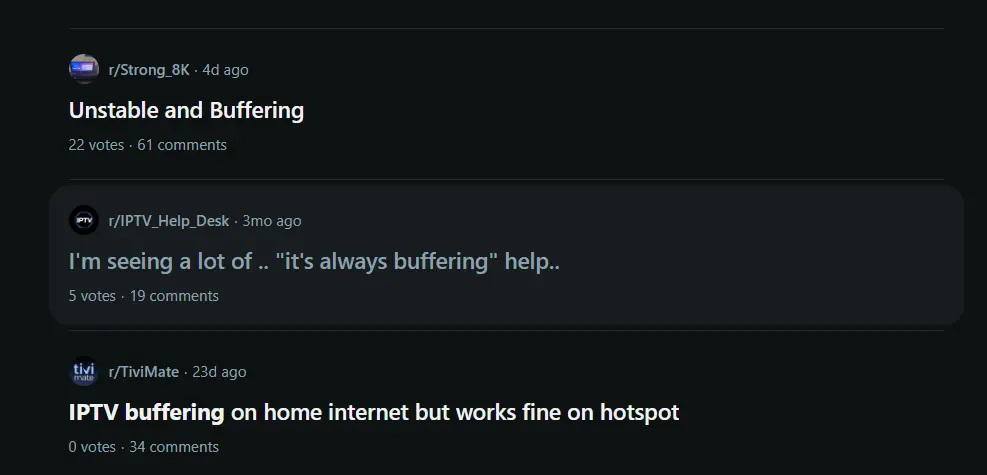
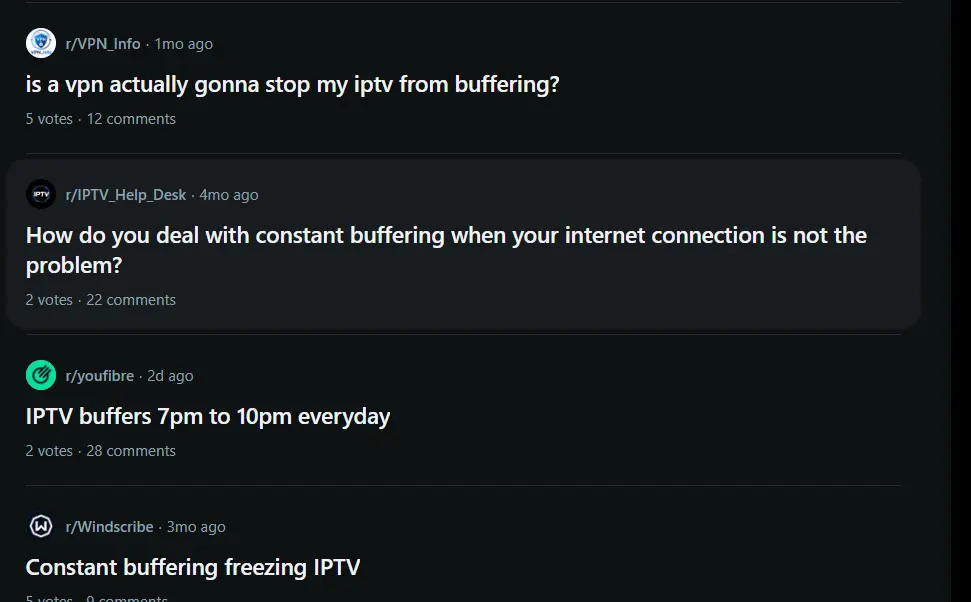
This is a common situation. In a recent r/TiviMate thread, a viewer described IPTV buffering on their home internet while a phone hotspot worked fine. Anyone chasing the best IPTV no buffering runs into this pattern sooner or later, and it points to the home network or the ISP, which is exactly what Swap 1 tests.
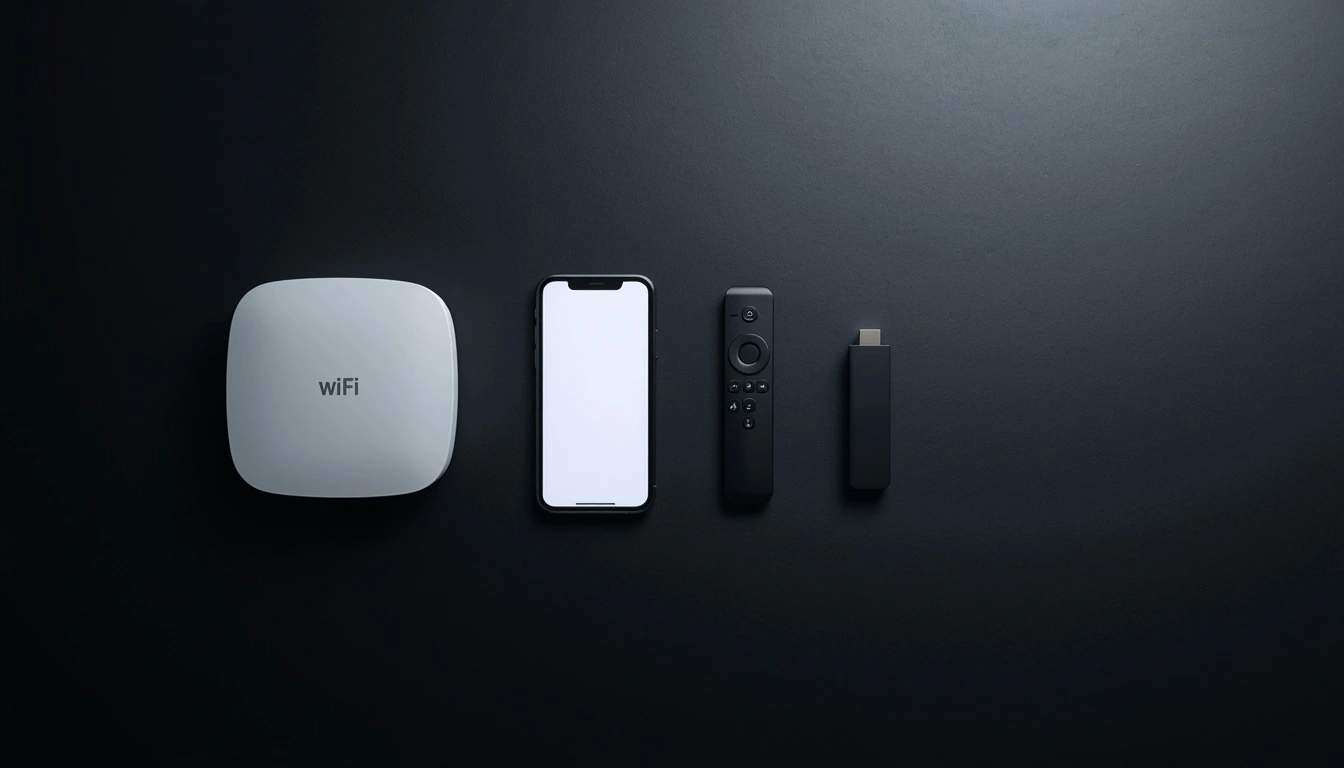
Run the same stream on a phone hotspot or another Wi-Fi.
Play the same stream on a different device.
Use another player app on the same device.
Try a different channel, on-demand title or quality level.
Change only one swap at a time, and note each result in your log (the test log is further down).
How to Read the Results
- Only Swap 1 fixes it: your router, Wi-Fi or ISP. Go to the fixes on your side of the connection.
- Only Swap 2 fixes it: your device is struggling. Free up storage, update it, or move to a stronger one.
- Only Swap 3 fixes it: check the app’s buffer and decoder settings, or try a different player.
- Only some channels fail, on every device and network: the source of those channels is the problem. Send the provider the channel names and the time.
- Nothing fixes it, on any network or device: that points to the service itself.
The last case is the only one where you have found a real problem with the provider. Everything else is something you can change, and you will know which one.
The 10-Point Scorecard to Find the Best IPTV No Buffering
You cannot see a server’s capacity from the outside. What you can see is how a provider behaves before you pay, and that predicts whether you will get stable IPTV. Score any service with the checklist below, one point per check, to shortlist the best IPTV no buffering for your needs. This is our own scoring method, not an industry standard, so treat it as a structured way to compare options.
Score a service as you goTick each check it passes. Nothing is saved.
How to Read Your Score
Checks 1 to 9 cost you nothing and take about 20 minutes, and they rule out weak options before you go looking for IPTV without buffering. Check 10 is the one that matters most, and you can only do it with the service in hand.
The 48-Hour Peak-Hour Test
Check 10 on the scorecard is where the best IPTV no buffering proves itself on your own network. Plan two days and about two hours of watching in total. The key detail is timing: test when everyone else is streaming too.
Step 1: Take a Baseline
Run a speed test on the streaming device itself, not on your phone. Fast.com works in a browser, and most devices have a speed test app. Write down the download speed and the time. Repeat it in the evening.
Here is what that looks like in practice. The screenshot below shows the same speed test, run on the same streaming device in the morning and in the evening. Put your own two results side by side and read them like this:
Step 2: Run Four Sessions
- Two evening sessions2 × 45 minBetween 7 and 10 pm, on different days.
- One quiet-hours session30 minMorning or early afternoon, as a comparison.
- One weekend eveningIf you canNetworks are often busiest then.
In each session, watch four kinds of content: a news channel, a channel with fast motion, an on-demand title, and a 4K stream if the service offers one. Fast motion and 4K are the first to show weak spots. Skipping the evening sessions is the most common mistake when people judge the best IPTV no buffering.
Step 3: Fill In the Log
This is a blank template for you to copy into a note or a spreadsheet. The yellow row is only an example of how to fill it in. During your test, add one row for each session, count each pause where the spinner appears, and time the longest one on your phone.
| Date and time | Device | Wi-Fi or cable | Content | Resolution | Pauses | Longest pause (sec) | Switch time (sec) |
|---|---|---|---|---|---|---|---|
| Example: Mon, 8:15 pm | Fire TV Stick | 5 GHz Wi-Fi | News channel | HD | 1 | 6 | 3 |
“Switch time” is how long a channel takes to start after you select it. Slow starts often show a struggling source before pauses do.

Step 4: Read the Results
These thresholds are our guideline, not an industry rule. They assume your connection meets the headroom rule from earlier.
| What you see | Likely meaning |
|---|---|
| Smooth in the morning, pauses every evening | Peak-hour congestion, at your ISP or at the provider |
| More than about two pauses an hour, or any pause longer than about 10 seconds, at peak | The service struggles at busy times. Mark check 10 as failed |
| Pauses only on 4K, HD is fine | Your bandwidth or device is the limit, not the whole service |
| Pauses on one channel only | The source of that channel. Report it to the provider |
| Same pauses on a different network | It follows the service, not your home |
A service that stays smooth in the evenings across two days is a real candidate for the best IPTV no buffering on your network. One that does not has told you what you needed to know for the price of a short plan.
Your Side of the Stream: 9 IPTV Buffering Fix Steps in the Right Order
Even the best IPTV no buffering service cannot overcome a weak home network, so start here. If you are asking how to stop IPTV buffering, this IPTV buffering fix list is the place to begin. The order matters. Begin with the changes that fix the most problems for the least effort, and stop as soon as the 4-swap test points you elsewhere.
Network (Fixes 1 to 4)
Start here- 1Test your real speed. Run the test on the streaming device, then compare it with the table below.
- 2Restart in the right order. Unplug the router for 30 seconds. Wait until its lights are stable, then restart the streaming device.
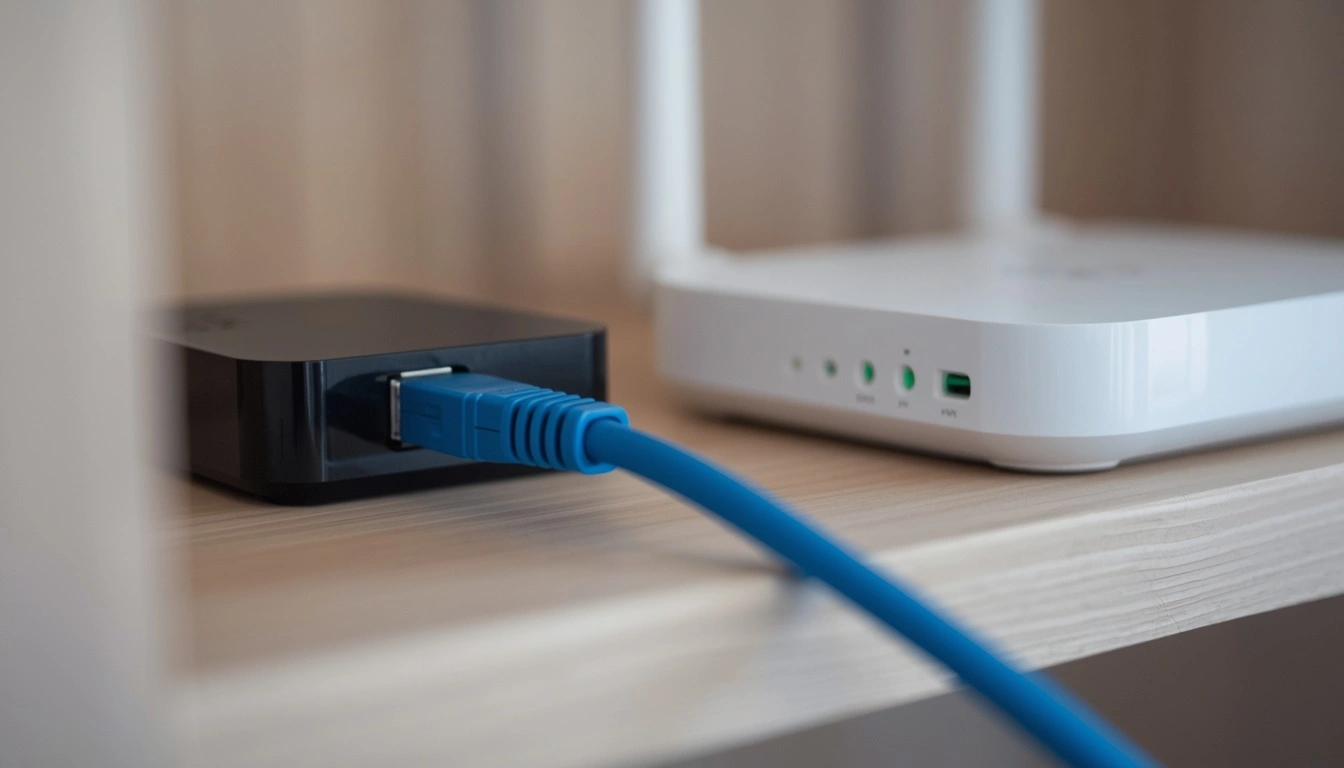
- 3Use Ethernet, or the 5 GHz band. A cable removes Wi-Fi interference. If you must use Wi-Fi, move the router closer and pick the 5 GHz network.
- 4Free up bandwidth. Pause downloads, game updates and cloud backups. Turn your VPN off for a test, since a slow VPN server often causes buffering.
| Quality | FCC minimum for one stream | Netflix recommendation | Our headroom target |
|---|---|---|---|
| Standard definition | 3 to 4 Mbps | not listed | 8 Mbps |
| High definition | 5 to 8 Mbps | 5 Mbps for 1080p | 16 Mbps |
| 4K Ultra HD | 25 Mbps | 15 Mbps | 50 Mbps |
The minimums come from the FCC broadband speed guide and the Netflix Help Center. The last column is our own target: about double the higher figure, so several devices can share the line.
Device (Fixes 5 and 6)
Then this- 5Free storage and close background apps. A nearly full streaming stick struggles to cache video. Uninstall apps you do not use, and restart the device afterwards.
- 6Update the device and the player. Old firmware and old app versions are a common source of stutter.
Player App (Fixes 7 to 9)
Fine-tuning- 7Clear the app cache. Do not clear the app’s data, or you will lose your settings and playlist.
- 8Change buffer size and decoder, one at a time. Raise the buffer a little, test, then try switching between hardware and software decoding. Our TiviMate buffering guide shows where these settings sit.
- 9Lower the quality, then raise it again. If 4K stutters and HD does not, your connection or device is the limit. Find the highest level that stays smooth.
Here is Fix 8 in practice. The screenshot below shows the playback settings of a player app. Look for two options: the buffer size and the decoder (hardware or software). Change only one, play the same stream for a few minutes, and write the result in your log before you touch the other. If nothing improves, set it back and move on. This IPTV buffering fix costs nothing but patience.
If buffering survives all nine, go back to the 4-swap test. By now you will know which swap to trust, and whether your service really is the best IPTV no buffering for your home.
Devices and Apps That Let the Best IPTV No Buffering Run Smoothly
Even the best IPTV no buffering stutters on a weak device. Before you spend money on a new provider, check that your hardware is not the bottleneck.
| Device type | Where it works well | Watch out for |
|---|---|---|
| Fire TV Stick 4K or 4K Max | Cheap, widely supported, plenty of guides | Limited storage and memory. Keep it clean, and add an Ethernet adapter if your Wi-Fi is weak |
| Apple TV 4K | Smooth interface and strong performance | Check that your model has the connection you want, and that your player app supports your playlist type |
| NVIDIA Shield or an Android TV box | More power for big playlists and 4K | Cheap no-name boxes often have weak Wi-Fi and little memory |
| Smart TV built-in apps | Nothing extra to buy | Often slower, with fewer settings to adjust |
Whatever you pick, a wired connection or a strong 5 GHz signal does more for IPTV without buffering than the brand on the box. We compare the main options in our guide to the best IPTV apps for Firestick. Using another device? See the guides to the best IPTV apps for Apple TV 4K and the best IPTV apps for Samsung Smart TV.
What to Look for in a Player App
The app is where you can fix a lot yourself, so choose one that lets you get the best IPTV no buffering out of any service. A good player is a big part of stable IPTV.
- Support for both Xtream Codes and M3U playlists. Not sure what M3U is? Read M3U vs MP3: what is the difference.
- Adjustable buffer size and a choice between hardware and software decoding.
- A proper guide (EPG) that you can refresh manually.
- Regular updates from the developer.
If you can open the settings and find those options, you are in control. If an app hides them, you are guessing. If you use IPTV Smarters, our IPTV Smarters login guide shows the login and setup steps.
5 Buffering Myths That Waste Your Time
A lot of IPTV buffering fix advice sounds right and does little. Here is what each popular idea really does when you are hunting for the best IPTV no buffering.
If you remember one thing from this list, make it the second myth. Most arguments about the best IPTV no buffering start with a speed test taken at the wrong time, on the wrong device.
Red Flags When Choosing the Best IPTV No Buffering Service
The scorecard catches most problems. These are the signs that should make you stop and ask questions before you pay for anything that claims to be the best IPTV no buffering.
- “Zero buffering, guaranteed.” Nobody controls your home network, so nobody can promise this. Real IPTV without buffering is measured, not promised.
- Uptime or server claims with no proof, such as “99.9% uptime” or “enterprise servers” with no status page and no details.
- Huge channel counts at very low prices, especially with every sports league and pay-per-view event included. Content at that scale and price is rarely licensed.
- No refund policy, no terms, no business details.
- Payment only by gift cards or crypto, with no way to reach support.
- Fake urgency, like “only 3 spots left today”.
- Reviews with no source or date, or the same wording on every page.
Questions to Ask Before You Pay
Put these five questions to any service that claims to be the best IPTV no buffering.
- Where does your content come from, and who licenses it?
- How many devices can stream at the same time on one plan?
- What is your refund policy if the service does not work on my network?
- How do I contact support, and how fast do you usually reply?
- What happens to my subscription if a source is removed?
A provider that answers these clearly and specifically has already earned more trust than one that answers with a discount.
A Note on Legality
IPTV technology is legal. Whether a particular service is legal depends on whether it holds the rights to the content it sells. A service without those rights can be shut down without warning, and a stream that disappears overnight is the worst kind of buffering. Read the terms and the copyright policy of any service before you pay, ours included.
What Great IPTV 4K Offers
We do not promise zero buffering, because no one can. What we can do is make the rest easy to check, so you can run the scorecard on us as well and decide whether we are the best IPTV no buffering for your setup.
See the full plans and pricing.
If you want to test us, take the shortest plan, run the 48-hour test above to see whether we deliver IPTV without buffering at your busiest hour, and write down the results. If the evening numbers are bad, tell us. We would rather fix it or refund it than keep a customer who is not watching.
Frequently Asked Questions
What Is the Best IPTV No Buffering Service?
The best IPTV no buffering service is the one that stays smooth on your own network during your busiest hours. No provider can guarantee zero buffering, so score the service on the 10-point list, then run the 48-hour peak-hour test with the shortest plan.
Why Does IPTV Buffer Even With Fast Internet?
A speed test shows your best moment, while streaming needs steady delivery at your worst. A weak Wi-Fi signal, a crowded router, a full device, wrong player settings, ISP congestion or an overloaded source can all cause buffering on a fast plan. The right IPTV buffering fix depends on which of these is the cause.
How Can I Tell Whether My Internet or the Service Is the Problem?
Use the 4-swap test. Change one thing at a time: the network, the device, the app and the stream. The swap that makes buffering stop points to the cause.
How Much Speed Do I Need for IPTV Without Buffering?
The FCC lists about 3 to 4 Mbps for standard definition, 5 to 8 Mbps for HD and 25 Mbps for 4K per stream. We suggest roughly double that at your busiest hour, so other devices on your network do not starve the stream.
Does a VPN Help or Hurt IPTV Buffering?
It can do either. A VPN may help if your ISP slows certain routes, but a slow or distant VPN server usually adds buffering. Test the same stream with the VPN on and off.
Is It Normal for IPTV to Buffer Only at Night?
It is common. Evening congestion, at your ISP or at the provider, often shows up between 7 and 10 pm. If the same stream is smooth in the morning, repeat the test on another network to see whether the cause follows you.
How to Stop IPTV Buffering Right Now?
Here is how to stop IPTV buffering quickly: restart the router and then the streaming device, move to Ethernet or the 5 GHz band, pause other downloads, clear the player’s cache and lower the stream quality. If it still buffers, use the 4-swap test to find out whether the problem is you or the service, and you will be on the way to stable IPTV.
Can One Service Be the Best IPTV No Buffering for Everyone?
No. The best IPTV no buffering depends on your home network, your device and the hours you watch. A service that runs smoothly for a neighbor on fiber can stutter on your Wi-Fi, which is why you should test it yourself.
Conclusion: Test It, Don’t Trust It
The best IPTV no buffering is not the service with the boldest promise. It is the one that holds up on your network, on your device, in the evening, for two days in a row. You now have the method: swap one thing at a time, score the provider before you pay, and run the 48-hour peak-hour test on the shortest plan.
Fix your own side first, because four of the five links in the chain are yours. That is how to stop IPTV buffering without guessing. Then judge the provider on what is left, and you will know which service is the best IPTV no buffering for you. Keep the log from your test, because it is the proof that the best IPTV no buffering is the one you measured, not the one you were promised. Stable IPTV is something you verify with data.
Want to test Great IPTV 4K the same way?
Compare the plans and pricing, or message us with your device and your question before you order.
Helpful Guides to Read Next
These guides cover the devices, playlists and settings mentioned above.